
How Adobe Captivate Supports Mobile Learning

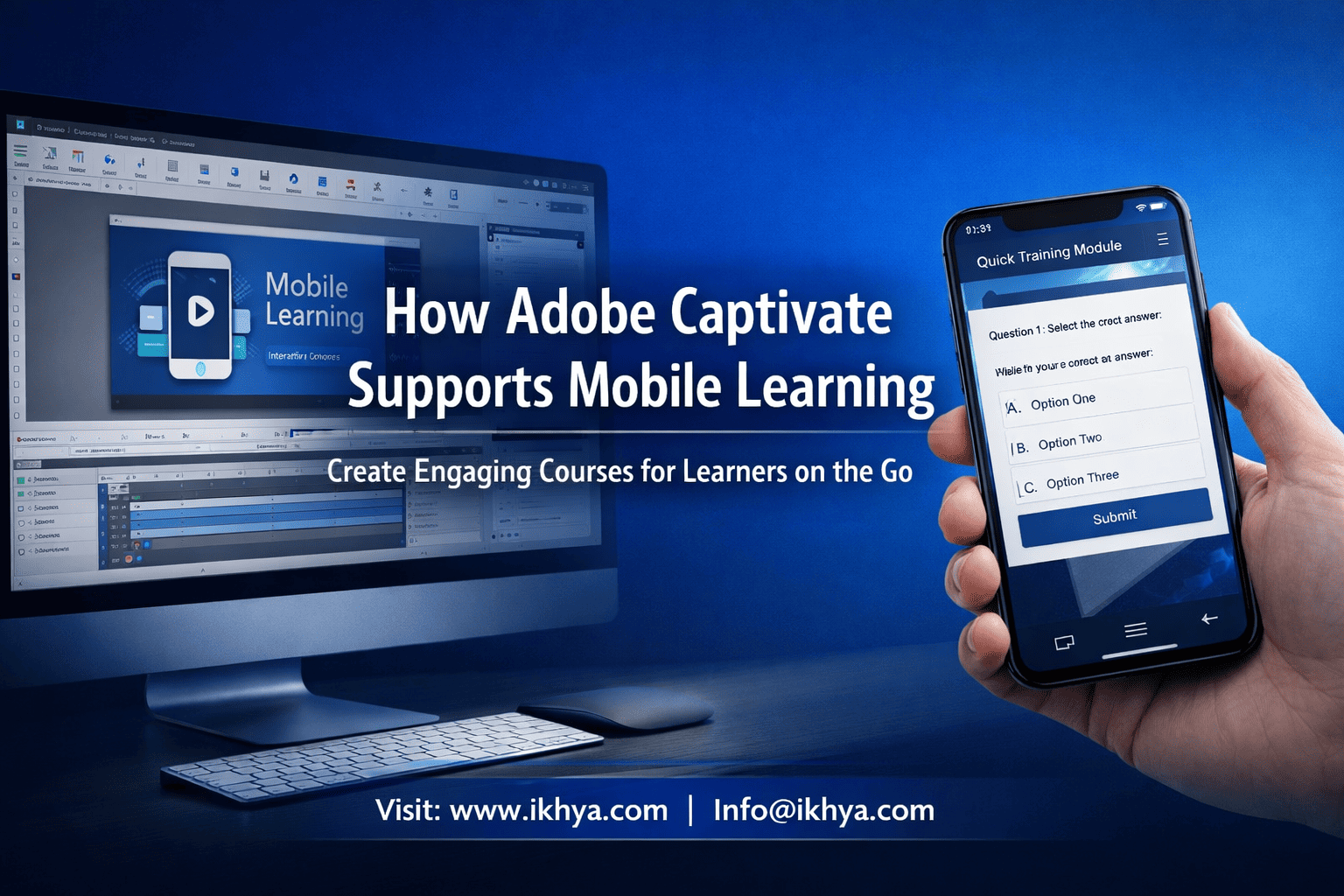
Mobile learning is no longer optional—it’s essential for modern workforce training. Organizations need courses that work seamlessly across devices without sacrificing engagement. Adobe Captivate mobile learning capabilities make this possible through responsive design, interactive features, and flexible delivery formats.
If you’re planning mobile-friendly training, you can explore tailored mobile learning development solutions to accelerate your rollout.
You can also book a free eLearning demo to see how mobile-first courses perform in real-world scenarios.
What Is Mobile Learning and Why It Matters
Mobile learning refers to delivering training content through smartphones, tablets, and other portable devices, enabling learners to access courses anytime, anywhere. It improves flexibility, engagement, and completion rates, especially for remote and frontline employees.
Why Mobile Learning Is Critical Today
Organizations across the USA, UK, UAE, and Australia are rapidly shifting to mobile-first training due to:
- Remote and hybrid work environments
- On-the-go workforce (sales, field staff, healthcare workers)
- Shorter attention spans requiring microlearning formats
- Need for just-in-time learning
Key Benefits of Mobile Learning
| Benefit | Impact |
|---|---|
| Flexibility | Learn anytime, anywhere |
| Higher engagement | Interactive, bite-sized content |
| Faster deployment | Quick updates and rollouts |
| Better retention | Learning in context improves memory |
Industry Examples
- Healthcare: Doctors accessing compliance training during shifts
- Manufacturing: Workers learning safety protocols on tablets
- Retail: Staff training on customer service via mobile modules
The Challenge Without the Right Tool
Without a robust authoring tool:
- Courses may not display properly on mobile devices
- Navigation becomes difficult on smaller screens
- Engagement drops due to poor UX
This is where Adobe Captivate stands out. It enables organizations to design fully responsive, mobile-ready eLearning courses that integrate with LMS platforms using SCORM and xAPI standards.
For organizations looking to scale effectively, partnering with experts like IKHYA – eLearning Solutions Company can ensure your mobile learning strategy is aligned with business goals. You can also reach out at info@ikhya.com for consultation.
Key Features of Adobe Captivate for Mobile Learning
Adobe Captivate supports mobile learning through a combination of responsive design tools, device-aware layouts, and interactive capabilities. It allows developers to create a single course that automatically adapts to different screen sizes, ensuring consistent learning experiences across smartphones, tablets, and desktops.
1. Fluid Boxes for Responsive Design
Fluid Boxes are one of Captivate’s most powerful features for mobile learning. They automatically adjust content layout based on screen size and orientation.
How Fluid Boxes Work:
- Divide the screen into flexible containers
- Automatically resize and rearrange content
- Maintain alignment and spacing across devices
Why It Matters:
- Eliminates the need to design separate versions for each device
- Reduces development time
- Ensures consistency across screens
2. True Responsive eLearning (Not Just Scaling)
Unlike basic scaling tools, Captivate offers true responsive design, meaning content adapts intelligently rather than simply shrinking.
Key Capabilities:
- Device-specific previews (mobile, tablet, desktop)
- Automatic content reflow
- Orientation support (portrait and landscape)
Result:
Learners get an optimized experience instead of a “zoomed-out” desktop course.
3. HTML5 Publishing for Cross-Device Compatibility
Captivate publishes courses in HTML5 format, making them accessible across all modern devices and browsers.
Advantages:
- No need for plugins like Flash
- Works on iOS, Android, and desktops
- Seamless LMS integration (SCORM, xAPI, AICC)
This ensures your training content is accessible globally, regardless of device or platform.
4. Touch-Friendly Interactions
Mobile learners rely on touch, not clicks. Captivate supports gesture-based interactions designed specifically for mobile devices.
Examples:
- Tap, swipe, and drag interactions
- Mobile-optimized buttons and navigation
- Gesture-based simulations
Impact:
Improves usability and makes learning more intuitive.
5. Built-In Mobile Preview and Testing
Captivate allows developers to test courses in real time across multiple devices.
Testing Features:
- Live preview on actual devices
- QR code-based testing
- Device-specific simulation
Benefit:
Ensures quality before deployment and reduces post-launch issues.
6. Advanced Interactivity and Simulations
Captivate is widely known for creating interactive simulations, which are fully compatible with mobile environments.
Use Cases:
- Software training simulations
- Scenario-based learning
- Compliance training with decision paths
You can explore advanced capabilities through Adobe Captivate development services if you need highly interactive mobile courses.
7. Microlearning and Modular Design Support
Captivate enables the creation of bite-sized learning modules, which are ideal for mobile consumption.
Key Features:
- Short learning units (3–5 minutes)
- Easy navigation between modules
- Reusable content blocks
This aligns perfectly with modern learning behavior and improves completion rates.
Feature Summary Table
| Feature | Mobile Learning Benefit |
|---|---|
| Fluid Boxes | Automatic responsive layout |
| HTML5 Publishing | Cross-device compatibility |
| Touch Interactions | Mobile-friendly usability |
| Device Preview | Faster testing and QA |
| Microlearning Support | Better engagement and retention |
These features make Adobe Captivate a strong choice for organizations aiming to deliver scalable, mobile-first training solutions.
For a deeper understanding of its ROI and enterprise value, you can explore benefits of Adobe Captivate for corporate elearning.
How Adobe Captivate Enables Responsive eLearning Design
Adobe Captivate enables responsive eLearning design by automatically adapting course layouts, content, and interactions to different screen sizes and orientations. Instead of creating multiple versions of a course, developers can build a single responsive project that delivers a consistent and optimized experience across mobile, tablet, and desktop devices.
Responsive vs Adaptive Design in Captivate
Understanding this distinction is critical when designing mobile learning.
| Type | How It Works | Captivate Approach |
|---|---|---|
| Responsive Design | Content fluidly adjusts to screen size | Uses Fluid Boxes |
| Adaptive Design | Fixed layouts for specific devices | Limited use in Captivate |
Key Takeaway:
Captivate focuses on true responsive design, ensuring content dynamically adjusts instead of switching between preset layouts.
How Captivate Handles Layout Responsiveness
Captivate uses a container-based layout system (Fluid Boxes) to manage how elements behave across devices.
Core Layout Behaviors:
- Content stacks vertically on smaller screens
- Images and text resize proportionally
- Elements maintain alignment and spacing
- Hidden objects can be device-specific
Example Scenario:
A compliance course designed on desktop:
- Multi-column layout → converts into a single column on mobile
- Large images → resize without distortion
- Navigation → becomes touch-friendly
Device Optimization Capabilities
Captivate allows developers to optimize experiences for specific devices without duplicating effort.
Device-Specific Controls:
- Show/hide elements for mobile vs desktop
- Adjust font sizes and spacing
- Customize navigation for touch devices
Result:
A seamless experience whether the learner is using:
- A smartphone during travel
- A tablet on the shop floor
- A desktop in the office
Step-by-Step: How Responsive Design Works in Captivate
Step 1: Create a Responsive Project
- Choose Fluid Box layout
- Define screen structure
Step 2: Add Content into Containers
- Insert text, images, videos
- Assign alignment and scaling rules
Step 3: Configure Behavior Rules
- Set wrapping, spacing, and resizing
- Define how elements adapt on smaller screens
Step 4: Preview Across Devices
- Use built-in preview tools
- Test portrait and landscape modes
Step 5: Publish as HTML5
- Ensure LMS compatibility (SCORM/xAPI)
- Deploy across devices
Why This Matters for Enterprises
Responsive design in Captivate directly impacts business outcomes:
- Reduced development cost: One course for all devices
- Faster deployment: No need for multiple versions
- Improved learner experience: Consistent UX across devices
- Higher completion rates: Mobile-friendly content increases engagement
Organizations investing in scalable training strategies often combine responsive design with expert-led development. If you’re evaluating implementation, understanding how to choose an Adobe Captivate development company can help ensure quality outcomes.
Common Mistakes to Avoid
- Designing for desktop first without mobile testing
- Overloading screens with too much content
- Ignoring touch-based navigation
- Not testing across real devices
Adobe Captivate’s responsive design capabilities make it a powerful solution for delivering consistent, scalable, and device-agnostic learning experiences.
Step-by-Step Process to Create Mobile Learning in Captivate
Creating mobile learning in Adobe Captivate involves a structured process that ensures courses are responsive, engaging, and compatible across devices. By following a clear workflow—from planning to deployment—you can build mobile-first courses that deliver consistent learning experiences on smartphones, tablets, and desktops.
Step 1: Define Learning Objectives and Mobile Strategy
Start by identifying what learners need to achieve and how they will access the course.
Key Actions:
- Define clear, measurable learning outcomes
- Identify target devices (mobile, tablet, desktop)
- Choose delivery format (microlearning, simulations, compliance)
Best Practice:
Design with a mobile-first mindset, especially for frontline or remote teams.
Step 2: Choose the Right Project Type in Captivate
Captivate offers different project types, but for mobile learning, responsive projects using Fluid Boxes are essential.
Options:
- Responsive project (recommended)
- Blank project with Fluid Boxes
- Template-based responsive course
This ensures your course automatically adapts to different screen sizes.
Step 3: Structure Content for Mobile Consumption
Mobile learning requires concise, well-structured content.
Content Guidelines:
- Break content into bite-sized modules (3–5 minutes)
- Use bullet points instead of long paragraphs
- Prioritize key information first
You can also leverage microlearning development services to design highly engaging short-format courses.
Step 4: Design Responsive Layout Using Fluid Boxes
Organize your content within Fluid Boxes to control layout behavior.
Design Tips:
- Use vertical stacking for smaller screens
- Avoid overcrowding slides
- Maintain consistent spacing and alignment
Result:
A clean, readable interface across all devices.
Step 5: Add Interactive Elements and Media
Engagement is critical for mobile learners.
Include:
- Tap-based interactions
- Scenario-based questions
- Videos and animations
- Knowledge checks and quizzes
For advanced interactivity, you can explore elearning simulation-based training services.
Step 6: Optimize Navigation for Touch Devices
Mobile learners rely on touch, so navigation must be intuitive.
Best Practices:
- Use large, tappable buttons
- Simplify menus and navigation paths
- Avoid hover-based interactions
Step 7: Test Across Devices and Screen Sizes
Testing ensures your course performs well in real-world conditions.
Testing Methods:
- Use Captivate’s device preview
- Test on actual smartphones and tablets
- Check portrait and landscape modes
Focus Areas:
- Text readability
- Button accessibility
- Media performance
Step 8: Publish and Deploy to LMS
Once testing is complete, publish your course for deployment.
Publishing Options:
- HTML5 format
- SCORM, xAPI, or AICC compliance
- LMS or cloud-based hosting
This ensures compatibility with enterprise LMS platforms globally.
Step Summary Table
| Step | Key Outcome |
|---|---|
| Define objectives | Clear learning goals |
| Choose project type | Responsive foundation |
| Structure content | Mobile-friendly format |
| Design layout | Consistent UX |
| Add interactivity | Higher engagement |
| Optimize navigation | Better usability |
| Test thoroughly | Quality assurance |
| Publish & deploy | Scalable delivery |
Pro Tip for Enterprises
Organizations often accelerate development and reduce errors by partnering with experts. If you’re scaling training across regions like the USA, UK, or UAE, consider working with specialists via Adobe Captivate development services.
This structured approach ensures your mobile learning courses are effective, scalable, and aligned with modern learner expectations.
Benefits of Using Adobe Captivate for Mobile Learning
Adobe Captivate offers several advantages for mobile learning, including responsive design, cost efficiency, scalability, and high engagement. It enables organizations to create a single course that works across devices, reducing development effort while improving learner experience and training outcomes.
1. Single Course for All Devices
Captivate allows you to design one course that automatically adapts to multiple screen sizes.
Benefits:
- No need for separate mobile and desktop versions
- Consistent learning experience across devices
- Reduced maintenance and updates
Business Impact:
Lower development costs and faster deployment cycles.
2. Faster Development and Deployment
With built-in responsive features and templates, Captivate speeds up course creation.
How It Helps:
- Predefined layouts reduce design time
- Reusable components streamline development
- Quick updates across all devices
Organizations looking to accelerate timelines often combine this with rapid elearning development services.
3. Improved Learner Engagement
Mobile learning thrives on interaction, and Captivate supports rich, interactive experiences.
Engagement Features:
- Touch-based interactions (tap, swipe)
- Scenario-based learning
- Gamified elements and quizzes
Result:
Higher course completion rates and better knowledge retention.
4. Seamless LMS Integration
Captivate ensures compatibility with enterprise learning systems.
Supported Standards:
- SCORM
- xAPI (Tin Can API)
- AICC
Advantages:
- Track learner progress and performance
- Generate analytics and reports
- Integrate with global LMS platforms
5. Scalability for Enterprise Training
Captivate is ideal for organizations delivering training at scale across regions.
Scalability Benefits:
- Deploy courses globally (USA, UK, UAE, AUS)
- Support multi-device learning environments
- Easily update and roll out new content
For organizations planning large-scale initiatives, exploring enterprise elearning development process step-by-step guide can provide additional clarity.
6. Strong Support for Microlearning
Captivate aligns well with modern learning trends like microlearning.
Advantages:
- Short, focused learning modules
- Easy content updates
- Better retention and engagement
This is especially useful for:
- Sales training
- Compliance updates
- Product knowledge
7. Advanced Interactivity and Simulations
Captivate stands out for creating highly interactive simulations, especially for technical training.
Use Cases:
- Software simulations
- Process training
- Safety and compliance scenarios
This makes it a strong choice for industries like healthcare, manufacturing, and IT.
Benefits Summary Table
| Benefit | Business Value |
|---|---|
| Single responsive course | Lower cost, easier maintenance |
| Faster development | Reduced time-to-market |
| High engagement | Better learning outcomes |
| LMS compatibility | Tracking and analytics |
| Scalability | Global deployment |
| Microlearning support | Improved retention |
| Advanced simulations | Real-world training impact |
Why Organizations Choose Captivate
Many enterprises choose Captivate because it balances flexibility, power, and scalability. It supports both simple mobile courses and complex interactive training, making it suitable for diverse learning needs.
If you’re evaluating ROI and implementation strategy, you can explore detailed insights on benefits of Adobe Captivate for corporate elearning.
Real-World Use Cases Across Industries
Adobe Captivate supports mobile learning across industries by enabling responsive, interactive, and scalable training solutions. From compliance to technical simulations, organizations use Captivate to deliver device-friendly learning experiences that improve performance, safety, and knowledge retention.
1. Healthcare Training
In healthcare, mobile learning is critical due to time constraints and on-the-go workflows. Captivate enables professionals to access training anytime, even during shifts.
Use Cases:
- Compliance training (HIPAA, patient safety)
- Medical device training simulations
- Emergency response scenarios
Example Scenario:
A hospital deploys mobile-friendly compliance modules that nurses can complete between shifts, improving completion rates and audit readiness.
For healthcare-focused solutions, explore healthcare training elearning solutions.
2. Manufacturing and Safety Training
Manufacturing environments require practical, accessible training that can be consumed on the shop floor.
Use Cases:
- Equipment handling simulations
- Safety protocols and hazard training
- SOP (Standard Operating Procedures) training
Example Scenario:
Workers use tablets to access safety training modules directly on-site, reducing accidents and ensuring compliance.
You can also review manufacturing training elearning solutions for industry-specific implementations.
3. Compliance Training Across Industries
Compliance training is mandatory across sectors like finance, healthcare, and retail. Captivate helps deliver engaging compliance content that learners actually complete.
Use Cases:
- Anti-money laundering (AML) training
- Workplace safety compliance
- Data protection and cybersecurity training
Example Scenario:
A financial services company rolls out mobile compliance modules globally, ensuring employees in different regions can access training anytime.
Explore compliance training elearning solutions for more insights.
4. Retail and Customer Service Training
Retail employees often work in dynamic environments where desktop access is limited. Mobile learning becomes essential.
Use Cases:
- Customer service training
- Product knowledge modules
- Sales techniques and upselling strategies
Example Scenario:
Retail staff complete short mobile lessons before shifts, improving customer interactions and sales performance.
5. IT and Software Training
Captivate’s simulation capabilities make it ideal for IT training.
Use Cases:
- Software walkthroughs
- System onboarding training
- Troubleshooting simulations
Example Scenario:
Employees learn new enterprise software through interactive simulations accessible on mobile devices.
For broader implementation strategies, refer to it software training elearning solutions.
Industry Use Case Summary
| Industry | Key Use Case | Mobile Learning Benefit |
|---|---|---|
| Healthcare | Compliance & simulations | Learn during shifts |
| Manufacturing | Safety training | On-site accessibility |
| Finance | Compliance | Global rollout |
| Retail | Sales training | Just-in-time learning |
| IT | Software simulations | Hands-on practice |
Why Captivate Works Across Industries
- Device flexibility: Works on smartphones, tablets, desktops
- Interactive learning: Supports simulations and scenarios
- Global scalability: Ideal for distributed teams
- Compliance-ready: Tracks learning via LMS
Organizations that successfully implement mobile learning often combine:
- Responsive design
- Microlearning
- Real-world simulations
Captivate enables all three, making it a versatile solution across industries.
Adobe Captivate vs Other Tools for Mobile Learning
Adobe Captivate compares strongly with other eLearning authoring tools by offering advanced responsive design, simulation capabilities, and flexible interactivity. However, the right choice depends on your training needs, team expertise, and project complexity.
Quick Comparison: Captivate vs Other Popular Tools
| Feature | Adobe Captivate | Articulate Storyline | Articulate Rise | Lectora |
|---|---|---|---|---|
| Responsive Design | Advanced (Fluid Boxes) | Limited (scaling) | Fully responsive | Strong responsive |
| Ease of Use | Moderate (learning curve) | Easy | Very easy | Moderate |
| Interactivity | High | High | Medium | High |
| Simulations | Excellent | Good | Limited | Good |
| Mobile Optimization | Strong | Moderate | Excellent | Strong |
| Development Speed | Medium | Fast | Very fast | Medium |
Adobe Captivate vs Articulate Storyline
Key Difference:
Captivate offers better true responsive design, while Storyline focuses more on slide-based interactivity.
Choose Captivate if:
- You need mobile-first responsive courses
- You require complex simulations
- Your learners use multiple device types
Choose Storyline if:
- You want faster development with simpler interactions
- Your team prefers PowerPoint-like workflows
For a deeper comparison, explore Articulate Storyline vs Adobe Captivate.
Adobe Captivate vs Articulate Rise
Key Difference:
Rise is fully responsive and extremely fast but lacks advanced customization.
Choose Captivate if:
- You need custom layouts and advanced logic
- You want simulation-heavy training
Choose Rise if:
- You need quick, template-based courses
- Your focus is microlearning and speed
Adobe Captivate vs Lectora
Key Difference:
Both tools offer strong responsive capabilities, but Lectora is more flexible for accessibility and compliance-heavy projects.
Choose Captivate if:
- You need strong visual interactivity
- You want built-in responsive automation
Choose Lectora if:
- Accessibility (WCAG compliance) is a top priority
- You need highly structured enterprise courses
Decision Framework: Which Tool Should You Choose?
| Requirement | Recommended Tool |
|---|---|
| Mobile-first responsive design | Adobe Captivate |
| Fast course development | Articulate Rise |
| Slide-based interactivity | Storyline |
| Accessibility-heavy projects | Lectora |
| Simulation-based training | Adobe Captivate |
When Captivate Is the Best Choice
Adobe Captivate is ideal when:
- You need true responsive design across devices
- Your training includes complex simulations
- You want long-term scalability
- Your audience uses mobile heavily
When Captivate May Not Be Ideal
- If your team needs very fast development with minimal learning curve
- If your courses are simple and template-based
- If you lack experienced developers
Expert Tip
Many organizations adopt a hybrid approach, using:
- Captivate for complex, interactive modules
- Rise or Storyline for rapid development
Before making a final decision, you can request an RFP to evaluate the right tool and strategy for your organization.
Choosing the right authoring tool directly impacts your mobile learning success. Captivate stands out for flexibility and depth, but it should align with your business goals and team capabilities.
When Should You Choose Adobe Captivate?
Adobe Captivate is the right choice when your training requires responsive design, advanced interactivity, and scalability across devices. It is particularly effective for organizations that need mobile-first learning experiences combined with simulations, complex logic, and enterprise-level deployment.
Key Scenarios Where Captivate Is the Best Fit
1. Mobile-First Training Is a Priority
If your workforce relies heavily on smartphones or tablets, Captivate’s responsive design ensures seamless learning across devices.
Ideal for:
- Field employees
- Sales teams
- Remote workforce
2. You Need Advanced Simulations
Captivate excels in creating software simulations and scenario-based training.
Use Cases:
- System training (ERP, CRM)
- Technical process training
- Safety simulations
Why It Matters:
Learners can practice real-world tasks in a risk-free environment.
3. Your Training Requires High Interactivity
If engagement is a priority, Captivate offers advanced interactive elements beyond basic slide-based tools.
Examples:
- Branching scenarios
- Drag-and-drop interactions
- Gamified learning paths
4. You Want a Single Course for All Devices
Captivate eliminates the need to create separate versions for mobile and desktop.
Benefits:
- Reduced development cost
- Easier updates and maintenance
- Consistent learner experience
5. You Are Scaling Training Across Regions
For global organizations, Captivate supports scalable deployment.
Advantages:
- LMS compatibility (SCORM, xAPI)
- Multi-device access
- Easy localization support
For global rollout strategies, combining Captivate with elearning translation localization services can significantly improve effectiveness.
Decision Checklist
Use this checklist to evaluate if Captivate is right for your project:
| Requirement | Captivate Fit |
|---|---|
| Mobile-first design | Yes |
| Complex simulations | Yes |
| High interactivity | Yes |
| Rapid, simple courses | Limited |
| Beginner-friendly tool | Moderate |
When You Might Need Expert Support
Captivate has a steeper learning curve compared to tools like Rise. Many organizations overcome this by working with specialists.
Consider expert support if:
- Your team lacks Captivate experience
- You need faster turnaround
- Your project involves complex interactions
You can evaluate options through how to choose an Adobe Captivate development company.
Captivate delivers maximum value when used for:
- High-impact training programs
- Simulation-heavy learning
- Mobile-first enterprise training
It may not be the best choice for quick, template-based courses—but it excels when depth and flexibility are required.
Challenges and Limitations of Adobe Captivate
Adobe Captivate is powerful, but it is not without limitations. While it excels in responsive design and interactivity, organizations may face challenges related to learning curve, development time, and complexity. Understanding these limitations helps you decide when and how to use Captivate effectively.
1. Steep Learning Curve
Captivate is not as beginner-friendly as some other authoring tools.
Challenges:
- Complex interface for new users
- Requires understanding of responsive design concepts
- Advanced features need technical expertise
Impact:
Teams may need training or external support before becoming productive.
2. Longer Development Time for Complex Courses
While Captivate is powerful, building highly interactive courses can take time.
Why It Happens:
- Custom interactions require manual setup
- Responsive design needs careful configuration
- Testing across devices adds extra effort
Result:
Slower turnaround compared to rapid tools like Rise.
3. Higher Dependency on Skilled Developers
Captivate often requires experienced instructional designers or developers.
Limitations:
- Not ideal for non-technical teams
- Difficult for SMEs (Subject Matter Experts) to use independently
This is why many organizations choose outsourcing Adobe Captivate development benefits for corporate training teams.
4. Limited Pre-Built Templates Compared to Competitors
Unlike tools like Rise, Captivate offers fewer ready-to-use templates.
Impact:
- More effort required for design
- Less speed for rapid deployment
Workaround:
Use custom templates or partner with experts.
5. Performance Considerations on Mobile Devices
If not optimized properly, courses can face performance issues.
Common Issues:
- Heavy media slowing down load times
- Complex interactions affecting responsiveness
- Poor optimization leading to lag
Best Practice:
- Optimize images and videos
- Use lightweight interactions
- Test on real devices
6. Cost Considerations
Captivate may involve higher upfront or operational costs.
Cost Factors:
- Licensing fees
- Training or onboarding costs
- Development time
However, these costs are often offset by long-term scalability and reuse.
Challenges Summary Table
| Challenge | Impact | Solution |
|---|---|---|
| Learning curve | Slower onboarding | Training or expert support |
| Development time | Delayed delivery | Use templates/processes |
| Skill dependency | Resource constraints | Outsource development |
| Limited templates | Slower design | Build reusable assets |
| Performance issues | Poor UX | Optimize content |
| Cost | Higher investment | Focus on long-term ROI |
How to Overcome These Challenges
Organizations can mitigate these limitations by:
- Using structured development processes
- Investing in instructional design expertise
- Leveraging outsourcing for complex projects
- Following mobile optimization best practices
Captivate is not a “quick-win” tool—it is a strategic investment. It delivers the most value when used for:
- Complex, high-impact training
- Long-term scalable programs
- Mobile-first learning environments
Understanding these limitations ensures you use Captivate in the right scenarios and maximize ROI.
Best Practices for Mobile Learning Design in Captivate
Designing effective mobile learning in Adobe Captivate requires a mobile-first mindset, simplified content, and optimized interactions. By following proven best practices, you can ensure your courses are engaging, easy to navigate, and perform well across all devices.
1. Adopt a Mobile-First Design Approach
Start designing for the smallest screen first, then scale up for larger devices.
Why It Works:
- Forces simplicity and clarity
- Improves usability on all devices
- Prevents overcrowded layouts
Key Tips:
- Prioritize essential content
- Use vertical scrolling layouts
- Avoid multi-column designs for mobile
2. Keep Content Short and Focused
Mobile learners prefer quick, digestible information.
Best Practices:
- Limit each module to 3–5 minutes
- Use bullet points instead of long paragraphs
- Focus on one learning objective per screen
This approach aligns with microlearning strategies. You can enhance results with microlearning development services.
3. Optimize for Touch Interactions
Mobile users interact through touch, not clicks or hovers.
Design Guidelines:
- Use large, tappable buttons
- Maintain proper spacing between elements
- Avoid hover-based interactions
Result:
Improved usability and fewer navigation errors.
4. Use Responsive Layouts Effectively
Leverage Fluid Boxes to ensure smooth content adaptation.
Tips:
- Stack elements vertically for smaller screens
- Avoid fixed-width objects
- Test how content wraps and resizes
Common Mistake:
Designing for desktop and forcing it into mobile layouts.
5. Optimize Media for Performance
Heavy media can slow down mobile learning experiences.
Optimization Techniques:
- Compress images and videos
- Use lightweight animations
- Avoid unnecessary media elements
Goal:
Fast loading times and smooth performance.
6. Design for Readability
Small screens require careful attention to text and layout.
Guidelines:
- Use larger font sizes (minimum 14–16px)
- Maintain high contrast between text and background
- Keep line lengths short
7. Test Across Devices and Environments
Testing is critical to ensure consistent performance.
Testing Checklist:
- Different screen sizes (phones, tablets)
- Portrait and landscape modes
- Multiple browsers and operating systems
8. Use Real-World Scenarios
Mobile learning is most effective when it’s contextual.
Examples:
- Scenario-based compliance training
- On-the-job decision-making simulations
- Role-based learning paths
This is especially useful in industries like healthcare, manufacturing, and retail.
Best Practices Summary Table
| Practice | Key Benefit |
|---|---|
| Mobile-first design | Better usability |
| Short content | Higher engagement |
| Touch optimization | Improved navigation |
| Responsive layouts | Consistent experience |
| Media optimization | Faster performance |
| Readability focus | Better comprehension |
| Device testing | Quality assurance |
| Real-world scenarios | Practical learning |
Successful mobile learning strategies combine:
- Responsive design (Captivate)
- Microlearning structure
- User-centric UX design
Organizations that follow these principles see higher engagement, better completion rates, and improved learning outcomes.
Should You Outsource Adobe Captivate Development?
Outsourcing Adobe Captivate development is often the most efficient way to create high-quality mobile learning courses, especially for complex, large-scale, or time-sensitive projects. It allows organizations to access expert skills, reduce development time, and ensure professional-quality output without building an in-house team.
When Outsourcing Makes Sense
Outsourcing is a smart choice in the following scenarios:
1. Lack of In-House Expertise
- Your team is new to Captivate
- Limited experience with responsive design or simulations
2. Tight Timelines
- Need to launch training quickly
- Large volume of courses to develop
3. Complex Training Requirements
- Simulation-heavy modules
- Scenario-based learning
- Multi-device optimization
4. Global Training Rollouts
- Multi-language courses
- LMS integration across regions
In-House vs Outsourcing Comparison
| Factor | In-House Development | Outsourced Development |
|---|---|---|
| Cost | High (hiring + training) | Flexible, project-based |
| Expertise | Limited initially | Immediate access to experts |
| Speed | Slower ramp-up | Faster delivery |
| Scalability | Difficult | Easy to scale |
| Quality | Depends on team | Consistent, professional |
Benefits of Outsourcing Captivate Development
- Access to experienced instructional designers and developers
- Faster project turnaround
- High-quality, interactive course design
- Reduced operational burden
- Scalable development for enterprise needs
For a deeper breakdown, explore outsourcing Adobe Captivate development benefits for corporate training teams.
What to Look for in a Captivate Development Partner
Choosing the right vendor is critical for success.
Key Criteria:
- Proven experience with Adobe Captivate
- Strong instructional design capabilities
- Portfolio of mobile learning projects
- Understanding of LMS standards (SCORM, xAPI)
- Ability to scale for enterprise needs
You can evaluate vendors effectively using this guide: how to choose an Adobe Captivate development company.
Step-by-Step: How to Outsource Successfully
Step 1: Define Requirements
- Learning objectives
- Target audience
- Devices and platforms
Step 2: Shortlist Vendors
- Review portfolios
- Check industry experience
Step 3: Request Proposal (RFP)
- Compare cost, timelines, and approach
- Evaluate technical capabilities
You can streamline this process by submitting a request for proposal.
Step 4: Start with a Pilot Project
- Test quality and collaboration
- Validate timelines and output
Step 5: Scale Development
- Expand to full project rollout
- Maintain ongoing collaboration
Cost Considerations
Outsourcing costs vary depending on complexity.
| Project Type | Estimated Cost Range |
|---|---|
| Basic mobile course | $1,000 – $3,000 |
| Interactive course | $3,000 – $8,000 |
| Simulation-heavy training | $8,000 – $20,000+ |
Note: Costs vary based on interactivity, duration, and localization needs.
Why Organizations Choose IKHYA
IKHYA – eLearning Solutions Company supports organizations with:
- End-to-end Captivate development
- Mobile-first learning strategies
- Industry-specific training solutions
If you’re planning your next project, you can explore Adobe Captivate development services or reach out at info@ikhya.com.
Outsourcing is not just about reducing workload—it’s about improving quality, speed, and scalability. For most organizations, especially those operating globally, it provides a clear competitive advantage.
Conclusion
Adobe Captivate has emerged as a powerful solution for mobile learning by combining responsive design, advanced interactivity, and enterprise scalability. It enables organizations to create a single course that works seamlessly across devices, ensuring consistent learning experiences for modern, distributed workforces.
From Fluid Boxes and HTML5 publishing to simulation-based training and microlearning support, Captivate addresses the core challenges of mobile learning—accessibility, engagement, and performance. While it requires expertise and careful implementation, the long-term benefits in scalability and learning impact make it a strong investment.
For organizations aiming to build high-quality mobile learning programs, working with experienced partners can significantly improve outcomes. You can explore Adobe Captivate development services or connect with IKHYA – eLearning Solutions Company at info@ikhya.com to get started.
If you’re ready to take the next step, feel free to contact us for a consultation tailored to your training needs.
FAQs
1. Is Adobe Captivate good for mobile learning?
Yes, Adobe Captivate is highly effective for mobile learning due to its responsive design features, Fluid Boxes, and HTML5 publishing, which ensure compatibility across devices.
2. What makes Captivate different from other tools?
Captivate offers true responsive design and advanced simulation capabilities, unlike many tools that rely on simple scaling or templates.
3. Can Captivate courses run on all mobile devices?
Yes, Captivate publishes courses in HTML5 format, making them compatible with iOS, Android, and modern web browsers.
4. Does Captivate support LMS integration?
Yes, it supports SCORM, xAPI, and AICC standards, allowing seamless integration with most LMS platforms.
5. Is Adobe Captivate suitable for beginners?
Captivate has a learning curve, so beginners may require training or expert support to use it effectively.
6. What industries benefit most from Captivate?
Healthcare, manufacturing, finance, retail, and IT industries benefit significantly due to the need for mobile and simulation-based training.
7. How long does it take to develop a mobile course in Captivate?
Development time varies from a few days for basic courses to several weeks for complex, interactive training.
8. Can Captivate be used for microlearning?
Yes, it supports microlearning by enabling short, modular, and mobile-friendly content design.
9. Should I outsource Captivate development?
Outsourcing is recommended if you lack in-house expertise or need faster, high-quality development.
10. How do I choose the right Captivate vendor?
You should evaluate experience, portfolio, technical expertise, and scalability. This guide on how to choose an Adobe Captivate development company can help.
11. What is Fluid Boxes in Adobe Captivate?
Fluid Boxes are responsive containers in Adobe Captivate that automatically adjust content layout based on screen size and orientation. They help create mobile-friendly courses without needing separate designs for different devices.
12. Does Adobe Captivate support offline mobile learning?
Yes, Captivate courses can be accessed offline through mobile apps or downloaded content, depending on the LMS or platform used. However, tracking data typically syncs once the device reconnects to the internet.
13. Can Adobe Captivate create app-like learning experiences?
Yes, Captivate can simulate app-like experiences using interactive elements, touch gestures, and full-screen responsive layouts, making learning feel intuitive on mobile devices.
14. Is Adobe Captivate suitable for microlearning development?
Yes, Captivate supports microlearning by enabling short, focused modules with interactive elements, making it ideal for mobile consumption and just-in-time training.
15. How does Captivate handle different screen orientations?
Captivate automatically adapts content for both portrait and landscape modes using responsive design rules, ensuring a consistent experience across orientations.
16. Can Captivate courses include video-based learning?
Yes, Captivate supports video integration, including interactive videos with overlays, quizzes, and branching scenarios optimized for mobile playback.
17. What file formats does Adobe Captivate support for mobile learning?
Captivate primarily publishes courses in HTML5 format, ensuring compatibility with modern mobile devices and browsers.
18. Is Adobe Captivate good for compliance training on mobile?
Yes, Captivate is widely used for compliance training because it supports tracking (SCORM/xAPI), interactive assessments, and mobile accessibility for global teams.
19. How do you optimize Captivate courses for mobile performance?
You can optimize performance by:
- Compressing media files
- Reducing heavy animations
- Using lightweight interactions
- Testing across devices
20. Can Adobe Captivate integrate with enterprise LMS platforms?
Yes, Captivate integrates with most enterprise LMS platforms and supports standards like SCORM, xAPI, and AICC for tracking and reporting.
Related Resources
If you’re exploring Adobe Captivate for mobile learning, the following resources will help you dive deeper into development strategies, tool selection, and enterprise implementation. These guides are structured to support your decision-making and help you plan scalable, high-impact eLearning solutions.
- Adobe Captivate eLearning development benefits, cost and use cases
- Step-by-step Adobe Captivate course development process
- Outsourcing Adobe Captivate development benefits for corporate training teams
- Corporate eLearning development: the complete enterprise guide
- How to choose the best eLearning vendor