Adobe Captivate SCORM and LMS Integration Guide

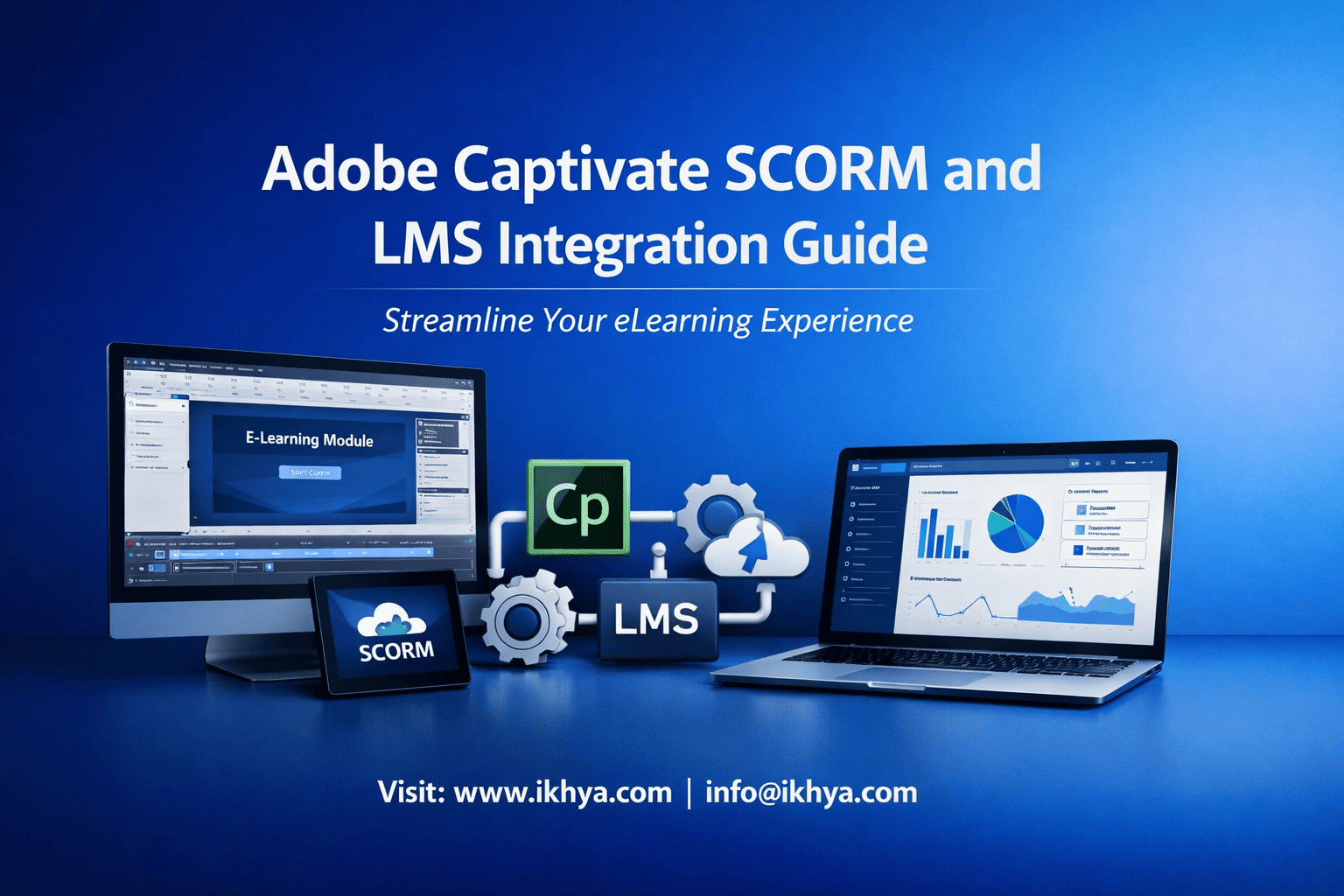
Integrating Adobe Captivate courses with an LMS using SCORM is critical for tracking learner progress, compliance, and performance. Yet, many organizations struggle with publishing settings, compatibility, and tracking issues. This guide simplifies the entire process—from SCORM basics to LMS deployment—so you can implement it correctly the first time.
If you’re planning to scale training globally, consider working with experts in Adobe Captivate development services to ensure seamless LMS integration and tracking accuracy.
You can also explore a hands-on approach through a free eLearning demo to see how SCORM-ready courses work in real LMS environments.
What Is SCORM and Why It Matters in Adobe Captivate
SCORM (Sharable Content Object Reference Model) is a standard that enables eLearning courses to communicate with Learning Management Systems. In Adobe Captivate, SCORM ensures your course can report learner progress, scores, completion status, and interactions back to the LMS.
Without SCORM, your course becomes just static content with no tracking or analytics.
Why SCORM Is Essential
- Tracks learner progress (completion, time spent, quiz scores)
- Ensures LMS compatibility across platforms like Moodle, Cornerstone, Docebo
- Enables compliance reporting for industries like healthcare and finance
- Supports reusability of training modules
What SCORM Tracks in Captivate
- Course completion status
- Quiz scores and pass/fail results
- Bookmarking (resume where learner left off)
- Interaction data (depending on SCORM version)
How It Works (Simple Explanation)
- Adobe Captivate publishes your course as a SCORM package (ZIP file)
- The LMS imports this package
- Learners access the course through the LMS
- Data is sent back to the LMS in real time
When SCORM Becomes Critical
SCORM integration is especially important for:
- Compliance training (e.g., healthcare regulations in the USA, UK, UAE)
- Corporate onboarding programs
- Certification-based learning
- Global workforce training
If your organization relies on structured learning paths and reporting, SCORM is not optional—it is foundational.
How Adobe Captivate Supports SCORM and LMS Integration
Adobe Captivate is built to support industry-standard eLearning protocols like SCORM, xAPI, and AICC, making it highly compatible with most modern LMS platforms. It allows you to publish courses in SCORM-compliant formats and configure detailed tracking settings without requiring advanced coding.
This makes Captivate a strong choice for organizations that need scalable, trackable, and LMS-ready training solutions.
Built-in SCORM Support in Adobe Captivate
Adobe Captivate simplifies SCORM integration through its publishing interface. You can directly export courses as SCORM packages and define how learner data is tracked.
Key capabilities include:
- Support for SCORM 1.2 and SCORM 2004
- Customizable completion criteria
- Advanced quiz reporting settings
- Bookmarking and resume functionality
- Integration with LMS reporting dashboards
For organizations building enterprise training programs, leveraging LMS-compatible eLearning course development services ensures these configurations are optimized from the start.
SCORM Publishing Options in Captivate
When publishing a course, Captivate provides several configuration options that directly impact LMS behavior.
| Feature | Description | Impact on LMS |
|---|---|---|
| Completion Criteria | Based on slides viewed or quiz passed | Determines course completion status |
| Reporting Options | Enable/disable SCORM reporting | Controls data sent to LMS |
| Quiz Settings | Pass/fail, scoring, attempts | Affects compliance tracking |
| Bookmarking | Resume from last slide | Improves learner experience |
| Data Reporting | Interaction-level tracking | Enables deeper analytics |
LMS Integration Capabilities
Adobe Captivate works with most major LMS platforms used globally, including:
- Moodle (open-source LMS)
- Cornerstone OnDemand (enterprise LMS)
- Docebo (cloud-based LMS)
- SAP SuccessFactors (corporate LMS)
Integration benefits include:
- Real-time learner tracking
- Automated reporting for compliance audits
- Scalable deployment across regions (USA, UK, UAE, AUS)
- Centralized learning analytics
SCORM vs Other Standards Supported by Captivate
Captivate doesn’t limit you to SCORM. It also supports modern alternatives.
| Standard | Use Case | When to Use |
|---|---|---|
| SCORM 1.2 | Basic tracking | Legacy LMS systems |
| SCORM 2004 | Advanced tracking & sequencing | Compliance-heavy training |
| xAPI (Tin Can) | Detailed analytics, offline tracking | Modern learning ecosystems |
| AICC | Older systems | Rare, legacy use |
Why Captivate Is Preferred for LMS Integration
- Flexible publishing settings for different LMS requirements
- Reliable SCORM compliance across platforms
- Strong assessment and tracking features
- Responsive design support for mobile learning
If you’re unsure how to configure these settings correctly, a structured approach like the step-by-step Adobe Captivate course development process can help avoid costly errors.
When Integration Gets Complex
Despite its capabilities, integration challenges can arise due to:
- LMS-specific SCORM interpretation differences
- Incorrect reporting configurations
- Version mismatches (SCORM 1.2 vs 2004)
- Browser or hosting issues
This is where expert guidance through eLearning consultancy services becomes valuable—especially for large-scale or compliance-driven training programs.
SCORM 1.2 vs SCORM 2004 vs xAPI: Which Should You Choose
Choosing between SCORM 1.2, SCORM 2004, and xAPI depends on your LMS capabilities, tracking needs, and training complexity. While SCORM 1.2 is widely supported, SCORM 2004 offers better tracking, and xAPI enables advanced analytics beyond traditional LMS environments.
Making the right choice directly impacts reporting accuracy, learner experience, and scalability.
Quick Comparison of SCORM vs xAPI
| Feature | SCORM 1.2 | SCORM 2004 | xAPI (Tin Can) |
|---|---|---|---|
| LMS Compatibility | Very high | High | Moderate |
| Tracking Capability | Basic | Advanced | Very advanced |
| Sequencing | No | Yes | Flexible |
| Offline Learning | No | No | Yes |
| Data Depth | Limited | Moderate | Extensive |
| Ease of Use | Easy | Moderate | Complex |
When to Choose SCORM 1.2
SCORM 1.2 is the safest option if you want maximum compatibility and minimal technical complexity.
Best for:
- Legacy LMS platforms
- Basic compliance training
- Simple course structures
- Organizations in early-stage eLearning adoption
Limitations:
- Limited reporting data
- No advanced sequencing
- Less flexibility for modern learning environments
When to Choose SCORM 2004
SCORM 2004 improves tracking and introduces sequencing rules, making it better suited for structured learning paths.
Best for:
- Compliance-heavy industries (healthcare, aviation, finance)
- Multi-module courses with dependencies
- Advanced reporting needs
Key advantages:
- Tracks detailed learner interactions
- Supports conditional navigation
- Better completion logic
When to Choose xAPI (Tin Can API)
xAPI goes beyond LMS limitations and allows tracking of learning experiences across platforms—even offline.
Best for:
- Mobile learning and offline training
- Simulation-based learning
- Complex learning ecosystems
- Organizations using multiple learning platforms
Capabilities include:
- Tracks learning outside LMS (apps, VR, simulations)
- Captures detailed behavioral data
- Enables advanced analytics and dashboards
Decision Framework: What Should You Use?
Use this simple framework to decide:
- Choose SCORM 1.2 if:
- Your LMS is older or has limited support
- You need quick deployment with minimal setup
- Choose SCORM 2004 if:
- You need structured learning paths
- Compliance and reporting accuracy are critical
- Choose xAPI if:
- You want deep analytics and future-ready learning
- Your training includes mobile, simulations, or blended learning
Real-World Scenario Examples
Healthcare (USA, UK)
- Requires strict compliance tracking
- Best choice: SCORM 2004
Manufacturing (UAE, AUS)
- Needs safety training with assessments
- Best choice: SCORM 1.2 or 2004
IT & Software Training
- Includes simulations and hands-on learning
- Best choice: xAPI
Common Mistake to Avoid
Many organizations default to SCORM 1.2 without evaluating their LMS capabilities or reporting needs. This can limit long-term scalability and analytics.
Before deciding, it’s worth consulting experts or reviewing your LMS setup through eLearning consultancy services to align the standard with your business goals.
Pro Tip
If you’re unsure, start with SCORM 1.2 for compatibility, then upgrade to SCORM 2004 or xAPI as your learning ecosystem matures.
Step-by-Step: How to Publish Adobe Captivate Courses for LMS
Publishing an Adobe Captivate course for LMS involves configuring SCORM settings, defining tracking criteria, and exporting a compliant package. Done correctly, this ensures accurate learner tracking, seamless LMS upload, and reliable reporting.
Follow these steps to avoid common errors and ensure smooth deployment.
Step 1: Prepare Your Course for SCORM Publishing
Before publishing, ensure your course is fully ready for LMS tracking.
Checklist:
- All slides are finalized and tested
- Quiz and assessment settings are configured
- Pass/fail criteria is defined
- Navigation is properly structured
- No broken links or missing assets
If you’re converting existing content, this stage is critical—especially when using services like convert PowerPoint to eLearning (complete guide) to ensure compatibility.
Step 2: Enable Reporting in Adobe Captivate
This is the most important step for LMS integration.
Steps:
- Go to Quiz > Quiz Preferences
- Select Reporting
- Check Enable reporting for this project
- Choose SCORM as the standard
- Select SCORM version (1.2 or 2004)
Key Tip:
If your LMS requirements are unclear, start with SCORM 1.2 for maximum compatibility.
Step 3: Configure SCORM Settings
Once reporting is enabled, configure how data is tracked.
| Setting | Recommended Option | Why It Matters |
|---|---|---|
| Completion Criteria | Quiz is passed / Slides viewed | Defines completion logic |
| Success Criteria | Pass/Fail based on score | Required for compliance |
| Reporting Status | Complete/Incomplete or Pass/Fail | Affects LMS reports |
| Interaction Data | Enable if needed | Tracks detailed activity |
Important:
Incorrect configuration here is the #1 reason SCORM tracking fails.
Step 4: Set Quiz and Tracking Preferences
Your quiz settings directly impact LMS reporting accuracy.
Best practices:
- Set a clear passing score
- Limit or define number of attempts
- Enable report quiz results only (for compliance courses)
- Ensure all quiz slides are properly linked
Step 5: Publish the Course
Now export the course as an LMS-ready package.
Steps:
- Click File > Publish
- Select HTML5 output
- Enable Zip files (SCORM package)
- Choose output location
- Click Publish
This generates a SCORM-compliant ZIP file ready for LMS upload.
Step 6: Test Before LMS Upload
Never upload directly without testing.
Recommended tools:
- SCORM Cloud (industry standard testing tool)
- Internal LMS sandbox
What to test:
- Course launches correctly
- Completion status updates
- Quiz scores are recorded
- Bookmarking works
Common Publishing Mistakes to Avoid
- Not enabling SCORM reporting
- Selecting the wrong SCORM version
- Misconfigured completion criteria
- Skipping testing before LMS upload
- Ignoring LMS-specific requirements
Pro Tip: Enterprise-Level Publishing
For large organizations deploying training across regions (USA, UK, UAE, AUS), consistency in SCORM configuration is critical.
Standardizing your publishing workflow through LMS-compatible eLearning course development services ensures:
- Consistent tracking across LMS platforms
- Reduced debugging time
- Faster deployment at scale
When to Get Expert Help
If you’re dealing with:
- Multiple LMS platforms
- Compliance-heavy training
- Large-scale course libraries
Then outsourcing or consulting experts can significantly reduce risk. You can explore structured solutions through Adobe Captivate development services.
Step-by-Step: Uploading Captivate Courses to an LMS
Uploading a SCORM package to an LMS involves importing the ZIP file, configuring course settings, and testing tracking behavior. While the steps vary slightly across LMS platforms, the overall process remains consistent.
Done correctly, this ensures your Adobe Captivate course tracks completion, scores, and learner progress without errors.
Step 1: Log in to Your LMS Admin Portal
Start by accessing your LMS with admin or course creator permissions.
Common LMS platforms include:
- Moodle
- Cornerstone OnDemand
- Docebo
- SAP SuccessFactors
Ensure you have permissions to upload SCORM content and create courses.
Step 2: Create a New Course or Learning Module
Before uploading the SCORM package, you need a course container.
Typical steps:
- Navigate to Courses / Learning Management
- Click Create New Course
- Enter:
- Course title
- Description
- Category (e.g., compliance, onboarding)
- Save the course shell
Step 3: Upload the SCORM Package
Now upload the ZIP file generated from Adobe Captivate.
Steps:
- Go to Add Content / Learning Module
- Select SCORM package
- Upload the ZIP file (do NOT unzip it)
- Wait for LMS processing
- Save settings
Step 4: Configure LMS Tracking Settings
After upload, configure how the LMS interprets SCORM data.
| Setting | Recommended Option | Why It Matters |
|---|---|---|
| Completion Tracking | Based on SCORM status | Ensures accurate reporting |
| Score Tracking | Enabled | Required for assessments |
| Attempt Limits | Defined (optional) | Controls learner retries |
| Launch Settings | New window / same window | Affects user experience |
Important:
Mismatch between Captivate settings and LMS configuration can break tracking.
Step 5: Assign the Course to Learners
Once configured, assign the course.
Options include:
- Individual learners
- User groups (e.g., departments)
- Role-based assignments
- Compliance-based enrollments
Step 6: Test the Course in LMS
Testing is critical before full rollout.
Test scenarios:
- Launch the course as a learner
- Complete the course
- Check:
- Completion status
- Score reporting
- Resume functionality
LMS-Specific Differences to Watch
| LMS | Key Difference |
|---|---|
| Moodle | Requires manual SCORM activity setup |
| Cornerstone | Advanced reporting configuration |
| Docebo | Automated tracking but strict SCORM rules |
| SAP SuccessFactors | Requires metadata alignment |
Common Upload Issues (and Fixes)
Issue: Course not launching
- Fix: Ensure ZIP file is not extracted before upload
Issue: Completion not tracked
- Fix: Align Captivate completion criteria with LMS settings
Issue: Scores not recorded
- Fix: Enable quiz reporting in Captivate
Issue: Resume not working
- Fix: Enable bookmarking in Captivate
Pro Tip: Standardize LMS Deployment
For organizations managing multiple courses and LMS platforms, standardization is key.
Using structured approaches like enterprise eLearning development process (step-by-step guide) helps:
- Reduce inconsistencies
- Improve reporting accuracy
- Speed up deployment cycles
When to Seek Expert Support
If you’re facing repeated LMS issues or managing large-scale deployments, expert support can save significant time and cost.
You can explore solutions like eLearning consultancy services or request a tailored solution through an RFP submission.
Common SCORM and LMS Integration Issues (and Fixes)
SCORM and LMS integration issues usually occur due to mismatched settings, incorrect publishing configurations, or LMS-specific limitations. The good news is that most problems are predictable and can be fixed quickly once you understand the root cause.
Below are the most common issues organizations face—and how to resolve them effectively.
Issue 1: Course Completion Not Tracking
If learners complete the course but the LMS still shows “incomplete,” the issue is typically related to completion criteria.
Common causes:
- Incorrect completion settings in Captivate
- LMS not configured to read SCORM completion status
- Conflict between “slides viewed” and “quiz passed” criteria
Fix:
- Set completion criteria clearly in Captivate:
- Use “Quiz is passed” for compliance training
- Use “Slides viewed” for informational courses
- Ensure LMS tracking is set to SCORM status (Complete/Incomplete or Pass/Fail)
Issue 2: Quiz Scores Not Reporting
This issue affects compliance-heavy industries where score tracking is critical.
Common causes:
- Quiz reporting not enabled
- Passing score not defined
- LMS not configured to capture score data
Fix:
- Enable Quiz Reporting in Captivate
- Define a clear passing score
- Ensure LMS score tracking is enabled
Issue 3: Course Not Launching in LMS
If the course fails to launch or shows a blank screen, the issue is usually technical.
Common causes:
- Incorrect file upload (ZIP extracted)
- Browser compatibility issues
- LMS security restrictions
Fix:
- Upload the ZIP file directly (do not extract)
- Test in multiple browsers (Chrome recommended)
- Check LMS launch settings (new window vs embedded)
Issue 4: Bookmarking (Resume) Not Working
Learners expect to resume where they left off—but this often fails due to configuration gaps.
Common causes:
- Bookmarking disabled in Captivate
- LMS not storing suspend data
- SCORM version limitations
Fix:
- Enable bookmarking in Captivate settings
- Use SCORM 2004 for better resume tracking
- Verify LMS supports suspend data
Issue 5: SCORM Version Compatibility Issues
Choosing the wrong SCORM version can break tracking entirely.
Common causes:
- LMS supports only SCORM 1.2
- Captivate published in SCORM 2004
- LMS has partial SCORM support
Fix:
- Confirm LMS compatibility before publishing
- Default to SCORM 1.2 if unsure
- Test in SCORM Cloud before LMS upload
Issue 6: Inconsistent Reporting Across LMS Platforms
Organizations using multiple LMS platforms often face inconsistent tracking results.
Common causes:
- Different LMS interpretation of SCORM data
- Variations in reporting settings
- Lack of standardization
Fix:
- Standardize SCORM settings across all courses
- Use consistent completion and scoring rules
- Validate courses in multiple LMS environments
Quick Troubleshooting Checklist
Use this checklist before escalating issues:
- SCORM reporting enabled in Captivate
- Correct SCORM version selected
- Completion criteria clearly defined
- Quiz reporting configured
- ZIP file uploaded correctly
- LMS tracking settings aligned
Real-World Scenario
A global manufacturing company deployed safety training across the UAE and AUS using different LMS platforms.
Problem: Completion tracking failed in one region
Cause: SCORM 2004 package uploaded to an LMS supporting only SCORM 1.2
Solution: Republished course in SCORM 1.2 → Issue resolved
Preventing Issues at Scale
For enterprise deployments, prevention is more efficient than troubleshooting.
Best practices include:
- Standardizing publishing workflows
- Testing in SCORM Cloud before deployment
- Using centralized development teams
- Documenting LMS-specific requirements
Organizations often streamline this process using outsourcing Adobe Captivate development benefits to reduce errors and improve scalability.
When Issues Persist
If problems continue despite troubleshooting, it may indicate deeper integration challenges.
In such cases:
- Conduct a full LMS compatibility audit
- Review SCORM configuration in detail
- Work with experienced developers
You can also consult specialists through eLearning consultancy services to diagnose and resolve complex integration issues faster.
Best Practices for Seamless Captivate LMS Integration
Seamless Adobe Captivate and LMS integration depends on consistent SCORM configuration, thorough testing, and alignment between course design and LMS settings. Following best practices helps prevent tracking errors, reduces rework, and ensures a smooth learner experience across devices and regions.
1. Standardize SCORM Settings Across All Courses
Consistency is critical, especially for organizations managing multiple courses or global training programs.
Best practices:
- Use a single SCORM version (e.g., SCORM 1.2 for compatibility)
- Define standard completion criteria (quiz-based or slide-based)
- Maintain consistent reporting settings across courses
Why it matters:
Inconsistent settings lead to unreliable LMS reporting and learner confusion.
2. Always Test Before LMS Deployment
Testing ensures your course behaves correctly before learners access it.
Recommended approach:
- Test in SCORM Cloud
- Validate in LMS staging environment
- Run real learner scenarios
What to check:
- Course launch behavior
- Completion tracking
- Quiz score reporting
- Resume functionality
3. Align Instructional Design with Tracking Logic
Course design directly impacts SCORM tracking.
Examples:
- If completion is based on quiz score, ensure:
- Quiz is mandatory
- Passing score is clearly defined
- If based on slides viewed, ensure:
- All slides are accessible
- Navigation is not restricted
For structured course design, following instructional design services principles helps align learning outcomes with tracking requirements.
4. Optimize for Mobile and Multi-Device Learning
Modern learners access training on multiple devices.
Best practices:
- Publish in HTML5 format only
- Avoid Flash or outdated elements
- Test responsiveness across devices
- Ensure LMS supports mobile playback
You can enhance this experience further with mobile learning development solutions for global teams.
5. Keep LMS and Browser Compatibility in Mind
Compatibility issues are a major source of integration failures.
Tips:
- Use modern browsers (Chrome, Edge)
- Avoid outdated LMS versions
- Verify LMS supports your SCORM version
- Check pop-up blockers and security settings
6. Document Your Integration Process
Documentation ensures repeatability and scalability.
Include:
- SCORM settings checklist
- LMS upload process
- Testing procedures
- Troubleshooting steps
This is especially useful for enterprise teams managing large course libraries.
7. Use Templates and Reusable Frameworks
Creating reusable templates reduces errors and speeds up development.
Benefits:
- Faster course production
- Consistent learner experience
- Reduced debugging time
Organizations often combine this with rapid eLearning development services to scale training efficiently.
8. Plan for Global Deployment
If your workforce spans multiple regions (USA, UK, UAE, AUS), consider:
- LMS regional differences
- Language localization
- Compliance requirements
For multilingual training, eLearning translation and localization services ensure consistency across geographies.
Best Practices Summary
| Area | Recommendation | Impact |
|---|---|---|
| SCORM Settings | Standardize across courses | Consistent tracking |
| Testing | Use SCORM Cloud + LMS staging | Prevent errors |
| Design Alignment | Match tracking with course logic | Accurate reporting |
| Mobile Optimization | HTML5 + responsive design | Better learner experience |
| Documentation | Maintain process records | Scalability |
Pro Tip: Think Beyond Integration
Successful LMS integration isn’t just technical—it’s strategic.
Organizations that treat SCORM integration as part of a broader learning ecosystem see:
- Better learner engagement
- Improved reporting accuracy
- Faster training deployment
If you’re planning large-scale transformation, aligning with custom eLearning development services can help integrate design, technology, and LMS strategy effectively.
When Best Practices Are Not Enough
Even with best practices, challenges may arise in:
- Multi-LMS environments
- Compliance-heavy industries
- Complex course structures
In such cases, expert intervention can streamline integration and reduce risk. You can explore tailored solutions or submit detailed requirements through an RFP request.
Real-World Use Cases Across Industries
Adobe Captivate SCORM and LMS integration is widely used across industries to deliver scalable, trackable, and compliance-driven training. Each industry has unique requirements, but the core goal remains the same—accurate tracking, seamless delivery, and measurable learning outcomes.
Below are real-world scenarios showing how different industries leverage this integration effectively.
Healthcare: Compliance and Certification Training
Healthcare organizations rely heavily on SCORM-enabled LMS platforms to meet strict regulatory requirements in regions like the USA and UK.
Use case:
- Infection control training
- Patient safety modules
- HIPAA/GDPR compliance courses
How Captivate + SCORM helps:
- Tracks course completion and certification status
- Ensures audit-ready reporting
- Supports mandatory assessments with pass/fail criteria
Example scenario:
A hospital network deploys compliance training across multiple locations. SCORM ensures every employee completes required modules and generates reports for regulatory audits.
For similar implementations, organizations often use healthcare training eLearning solutions to ensure compliance and scalability.
Manufacturing: Safety and Operational Training
Manufacturing companies in regions like the UAE and AUS use Captivate for safety training and operational procedures.
Use case:
- Equipment handling training
- Workplace safety protocols
- Emergency response training
How Captivate + SCORM helps:
- Tracks mandatory safety training completion
- Supports scenario-based learning simulations
- Enables periodic re-certification tracking
Example scenario:
A manufacturing firm deploys safety training across multiple plants. SCORM tracking ensures employees complete modules before accessing hazardous work areas.
Organizations often implement this using manufacturing training eLearning solutions for consistent global deployment.
IT & Software: Technical and Product Training
IT companies require flexible and scalable training for onboarding, product updates, and technical skills development.
Use case:
- Software onboarding
- Product feature training
- Developer upskilling
How Captivate + SCORM helps:
- Tracks progress across multi-module courses
- Supports interactive simulations and labs
- Enables continuous learning tracking
Example scenario:
A SaaS company launches a new product update. Captivate courses are deployed via LMS, and SCORM tracks completion and performance across global teams.
For such implementations, IT and software training eLearning solutions are often used to manage scale and complexity.
Finance: Regulatory and Compliance Training
Financial institutions must ensure employees meet strict regulatory standards.
Use case:
- Anti-money laundering (AML) training
- Risk management programs
- Data privacy compliance
How Captivate + SCORM helps:
- Provides detailed audit trails
- Tracks assessment scores for certification
- Ensures mandatory training completion
Retail: Customer Service and Sales Training
Retail organizations use SCORM-enabled LMS platforms to train distributed teams efficiently.
Use case:
- Customer service training
- Product knowledge modules
- Sales training programs
How Captivate + SCORM helps:
- Tracks completion across large workforces
- Supports mobile learning for frontline staff
- Enables role-based training assignments
Key Takeaways Across Industries
| Industry | Primary Goal | SCORM Benefit |
|---|---|---|
| Healthcare | Compliance | Audit-ready tracking |
| Manufacturing | Safety | Mandatory completion tracking |
| IT & Software | Skill development | Flexible learning paths |
| Finance | Regulation | Detailed reporting |
| Retail | Workforce training | Scalable deployment |
Why Industry Context Matters
SCORM and LMS integration is not one-size-fits-all. Each industry requires:
- Different tracking criteria
- Customized assessment logic
- LMS configurations aligned with business goals
This is why many organizations choose specialized solutions like custom eLearning development services to tailor training for their industry needs.
Scaling Across Regions
Global organizations operating in the USA, UK, UAE, and AUS must also consider:
- Regional compliance requirements
- LMS infrastructure differences
- Language and localization needs
Using structured deployment strategies ensures consistency across all regions.
Cost, Tools, and When to Outsource Captivate Development
The cost of Adobe Captivate SCORM and LMS integration depends on course complexity, interactivity level, number of modules, and LMS requirements. While simple courses can be built in-house, enterprise-level training often requires specialized tools, expertise, and outsourcing support.
Understanding cost factors and tool choices helps you make the right investment decision.
Typical Cost Breakdown for Captivate eLearning
Costs vary widely based on scope and quality requirements.
| Course Type | Complexity | Estimated Cost (USD) |
|---|---|---|
| Basic SCORM course | Low (slides + simple quiz) | $1,000 – $3,000 |
| Interactive course | Medium (animations, branching) | $3,000 – $8,000 |
| Advanced simulation | High (software simulations, scenarios) | $8,000 – $20,000+ |
Key cost drivers:
- Instructional design effort
- Multimedia elements (audio, video, animation)
- SCORM/xAPI configuration complexity
- LMS integration and testing
- Localization for global teams
Tools Used in Captivate-Based Development
While Adobe Captivate is the core authoring tool, additional tools are often used for production and integration.
| Tool Type | Examples | Purpose |
|---|---|---|
| Authoring Tool | Adobe Captivate | Course creation |
| LMS Platforms | Moodle, Docebo, Cornerstone | Course delivery |
| Testing Tools | SCORM Cloud | Validation |
| Design Tools | Photoshop, Illustrator | Visual assets |
| Audio Tools | Audition | Voiceovers |
For a broader comparison of tools, you can explore best eLearning authoring tools for corporate training.
In-House vs Outsourcing: What Should You Choose?
The decision depends on your internal capabilities and project scale.
| Factor | In-House | Outsourcing |
|---|---|---|
| Cost | Lower upfront | Higher initial, better ROI |
| Expertise | Limited | Specialized experts |
| Speed | Slower | Faster turnaround |
| Scalability | Difficult | Highly scalable |
| Quality | Varies | Consistent |
When In-House Development Works
Choose in-house if:
- You have a skilled instructional design team
- Courses are simple and low-volume
- LMS integration is straightforward
- Budget constraints are strict
When to Outsource Captivate Development
Outsourcing is the better option when:
- You need large-scale course development
- Projects involve complex SCORM/xAPI configurations
- Training must meet compliance standards
- You require fast turnaround and consistency
Organizations often leverage outsourcing Adobe Captivate development benefits to reduce timelines and improve quality.
Hidden Costs to Watch
Many organizations underestimate these:
- LMS compatibility testing
- Rework due to SCORM errors
- Maintenance and updates
- Localization and translation
- Vendor coordination
ROI Perspective: Why Investment Matters
A properly integrated Captivate + LMS solution delivers:
- Accurate learner tracking
- Reduced compliance risk
- Faster training deployment
- Improved learner engagement
When done poorly, it leads to:
- Reporting inaccuracies
- Learner frustration
- Increased rework costs
Decision Framework
Use this quick guide:
- Go in-house if:
- Small team, simple courses
- Limited LMS complexity
- Go outsourced if:
- Enterprise-scale deployment
- Compliance-driven training
- Multi-LMS or global rollout
Expert Support for Better Outcomes
If you’re unsure about cost, tools, or execution strategy, consulting experts can prevent expensive mistakes.
You can evaluate vendors using this how to choose an Adobe Captivate development company guide or directly connect with specialists via contact us for tailored recommendations.
Adobe Captivate vs Other Authoring Tools for LMS Integration
Adobe Captivate is a powerful authoring tool for SCORM and LMS integration, but it’s not the only option. Tools like Articulate Storyline, Rise 360, Lectora, and iSpring also support SCORM and offer different strengths depending on your training needs.
Choosing the right tool impacts development speed, interactivity, LMS compatibility, and long-term scalability.
Quick Comparison of Authoring Tools
| Feature | Adobe Captivate | Articulate Storyline | Rise 360 | Lectora | iSpring |
|---|---|---|---|---|---|
| SCORM Support | Yes (1.2, 2004, xAPI) | Yes | Yes | Yes | Yes |
| Interactivity | Very high | High | Moderate | High | Moderate |
| Ease of Use | Moderate | Easy | Very easy | Moderate | Easy |
| Responsive Design | Advanced | Limited | Fully responsive | Advanced | Moderate |
| Simulation Capability | Excellent | Good | Limited | Good | Basic |
| Best For | Complex training | Interactive courses | Rapid learning | Compliance-heavy | PPT-based courses |
When Adobe Captivate Is the Best Choice
Adobe Captivate stands out when you need advanced functionality and flexibility.
Best suited for:
- Software simulations and hands-on training
- Complex branching scenarios
- Mobile-responsive learning experiences
- Compliance-driven training with detailed tracking
Why organizations choose Captivate:
- Strong SCORM and xAPI support
- Advanced interactivity and customization
- Robust simulation capabilities
When to Consider Other Tools
Each tool has its strengths depending on your use case.
Articulate Storyline
- Ideal for interactive courses with faster development
- Easier learning curve
- Explore more in Articulate Storyline vs Adobe Captivate: which tool is better
Rise 360
- Best for rapid, mobile-first learning
- Limited customization but very fast production
- Learn more about Articulate Rise development services
Lectora
- Strong for compliance and accessibility-focused training
- Offers deep control over content structure
- See Lectora Inspire vs Adobe Captivate
iSpring
- Best for PowerPoint-based course conversion
- Quick and simple deployment
- Explore iSpring eLearning development services
Decision Framework: Choosing the Right Tool
Use this framework to decide:
- Choose Adobe Captivate if:
- You need advanced simulations or interactivity
- Mobile responsiveness is critical
- You require deep SCORM/xAPI customization
- Choose Articulate Storyline if:
- You want faster development with strong interactivity
- Your team prefers ease of use
- Choose Rise 360 if:
- You need rapid deployment and mobile-first design
- Content is primarily informational
- Choose Lectora if:
- Accessibility and compliance are top priorities
- Choose iSpring if:
- You are converting PowerPoint-based training quickly
Real-World Tool Selection Example
A global IT company needed simulation-based product training.
- Requirement: Hands-on practice, SCORM tracking, mobile support
- Chosen tool: Adobe Captivate
- Result: Improved learner engagement and accurate performance tracking
In contrast, a retail company delivering quick onboarding modules chose Rise 360 for faster rollout.
Key Takeaways
- No single tool fits all use cases
- Captivate excels in complex, interactive training
- Other tools may offer speed and simplicity advantages
- LMS compatibility is strong across all major tools
Strategic Recommendation
Many organizations adopt a multi-tool strategy, using:
- Captivate for advanced simulations
- Storyline for interactive modules
- Rise for rapid deployment
This hybrid approach balances speed, cost, and quality.
Need Help Choosing the Right Tool?
Selecting the right authoring tool can significantly impact your training success.
If you’re evaluating options, consider expert guidance through eLearning consultancy services or explore end-to-end solutions with custom eLearning development services.
How to Choose the Right eLearning Partner
Choosing the right eLearning partner for Adobe Captivate SCORM and LMS integration is critical to ensuring quality, scalability, and accurate tracking. The right vendor not only develops courses but also aligns technology, instructional design, and LMS compatibility with your business goals.
A poor choice can lead to tracking failures, delays, and increased costs—while the right partner ensures smooth execution and long-term success.
What to Look for in an eLearning Partner
A reliable partner should offer both technical expertise and strategic guidance.
Key evaluation criteria:
- SCORM and LMS expertise (1.2, 2004, xAPI)
- Experience with multiple LMS platforms
- Strong instructional design capabilities
- Proven industry experience (healthcare, manufacturing, IT, etc.)
- Ability to scale for global deployments
Essential Questions to Ask Before Hiring
Use these questions to evaluate vendors effectively:
- What SCORM standards do you specialize in?
- Have you worked with our LMS before?
- How do you handle SCORM troubleshooting and testing?
- Can you share case studies or examples?
- What is your development and QA process?
For a deeper evaluation framework, refer to this guide on how to choose the eLearning vendor.
Red Flags to Avoid
Avoid vendors who:
- Lack SCORM or LMS integration experience
- Cannot explain their testing process
- Offer generic solutions without customization
- Do not provide post-deployment support
In-House vs Vendor: Final Decision Snapshot
| Factor | In-House Team | eLearning Partner |
|---|---|---|
| Expertise | Limited | Specialized |
| Speed | Slower | Faster |
| Scalability | Challenging | High |
| Cost Efficiency | Short-term | Long-term ROI |
| Quality Control | Variable | Structured |
When a Dedicated Partner Makes Sense
You should strongly consider an eLearning partner if:
- You are deploying enterprise-level training programs
- You need multi-LMS integration
- Your training involves compliance and certifications
- You require rapid development at scale
In such cases, working with specialists like IKHYA – eLearning Solutions Company ensures both technical precision and strategic alignment.
Vendor Selection Framework
Follow this structured approach:
- Define your training goals and LMS requirements
- Shortlist vendors with relevant experience
- Review case studies and past work
- Request a pilot or sample course
- Evaluate communication and support model
Real-World Scenario
A financial services company needed compliance training across multiple regions.
- Initial attempt: In-house development
- Challenge: SCORM tracking inconsistencies across LMS platforms
- Solution: Partnered with an expert vendor
- Result: Standardized SCORM setup, improved reporting accuracy, faster deployment
Why the Right Partner Matters
The right partner helps you:
- Avoid SCORM integration errors
- Reduce development timelines
- Ensure LMS compatibility
- Deliver high-quality learner experiences
Take the Next Step
If you’re planning to implement or scale Adobe Captivate LMS integration, expert guidance can make the process faster and more reliable.
You can:
- Request a tailored solution via an RFP submission
- Reach out directly through contact us
- Or explore capabilities of IKHYA – eLearning Solutions Company
For inquiries, you can also email: info@ikhya.com
FAQs
1. What is SCORM in Adobe Captivate?
SCORM in Adobe Captivate is a standard that enables courses to communicate with LMS platforms, allowing tracking of learner progress, scores, completion status, and interactions.
2. Which SCORM version should I use in Captivate?
SCORM 1.2 is best for maximum LMS compatibility, while SCORM 2004 is better for advanced tracking, sequencing, and compliance-heavy training.
3. Why is my Captivate course not tracking in LMS?
This usually happens due to incorrect SCORM settings, disabled reporting, mismatched LMS configuration, or incorrect completion criteria.
4. Can Adobe Captivate support xAPI?
Yes, Adobe Captivate supports xAPI (Tin Can API), enabling advanced tracking beyond LMS, including mobile, offline, and simulation-based learning.
5. How do I upload a Captivate course to an LMS?
Publish the course as a SCORM ZIP file, log in to your LMS, create a course shell, and upload the ZIP file without extracting it.
6. What LMS platforms support Captivate SCORM courses?
Most LMS platforms such as Moodle, Docebo, Cornerstone OnDemand, and SAP SuccessFactors support Captivate SCORM courses.
7. What is the difference between SCORM and xAPI?
SCORM tracks learning within an LMS, while xAPI tracks learning across multiple platforms, including offline activities and external systems.
8. How do I fix SCORM completion issues in Captivate?
Ensure completion criteria are properly set (quiz passed or slides viewed) and that LMS tracking settings match Captivate configurations.
9. Why are quiz scores not reporting in LMS?
This can occur if quiz reporting is disabled, passing scores are not defined, or LMS settings are not configured to capture score data.
10. What is bookmarking in SCORM courses?
Bookmarking allows learners to resume a course from where they left off, improving user experience and course completion rates.
11. Does Adobe Captivate support mobile learning?
Yes, Captivate supports responsive HTML5 output, enabling courses to run on mobile devices, tablets, and desktops.
12. How do I test a SCORM package before LMS upload?
Use tools like SCORM Cloud or an LMS staging environment to test launch behavior, completion tracking, and score reporting.
13. What happens if I upload the wrong SCORM version?
The course may fail to track properly or not function at all if the LMS does not support the selected SCORM version.
14. Can I update a SCORM course after uploading to LMS?
Yes, you can upload a new version of the SCORM package, but this may affect existing learner progress depending on LMS settings.
15. What are common SCORM errors in Captivate?
Common errors include tracking failure, quiz reporting issues, bookmarking problems, and course launch failures.
16. How long does it take to develop a Captivate SCORM course?
Development time ranges from a few days for basic courses to several weeks for complex, interactive training programs.
17. Is SCORM still relevant in modern eLearning?
Yes, SCORM is still widely used due to its compatibility, though xAPI is gaining popularity for advanced analytics and tracking.
18. What industries benefit most from SCORM integration?
Healthcare, manufacturing, finance, IT, and retail benefit significantly due to compliance, certification, and scalable training needs.
19. Should I outsource Adobe Captivate development?
Outsourcing is recommended for complex, large-scale, or compliance-driven projects requiring expertise and faster turnaround.
20. How do I choose the right eLearning vendor for Captivate projects?
Evaluate vendors based on SCORM expertise, LMS experience, instructional design capabilities, scalability, and proven case studies. You can follow this detailed guide on how to choose the eLearning vendor.
Related Resources
Explore these resources to move from understanding Adobe Captivate capabilities to implementing and scaling LMS-integrated training effectively.