How iSpring Converts PowerPoint to Interactive eLearning (Step-by-Step Guide)

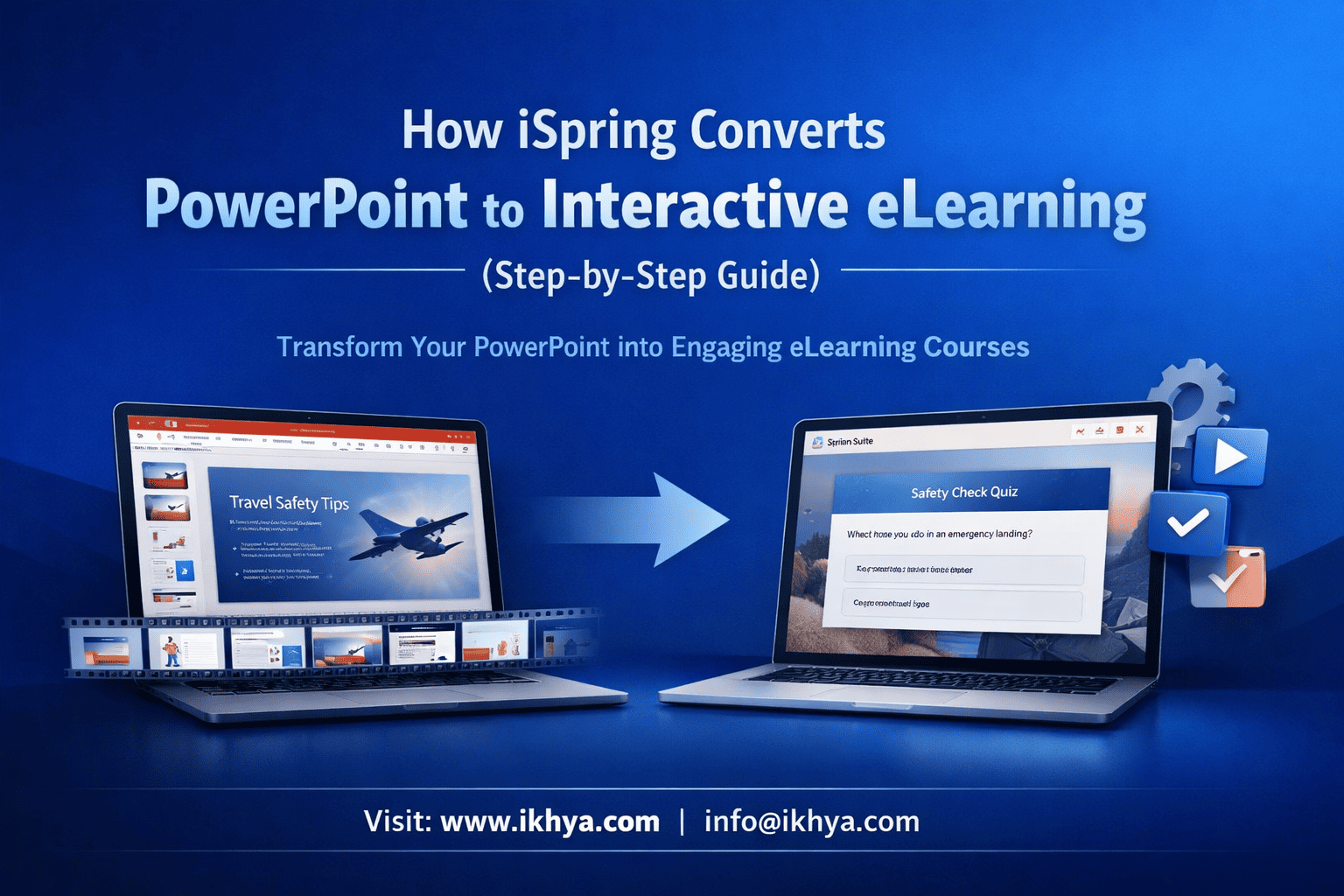
PowerPoint presentations are everywhere in corporate training—but most of them fail to engage learners. That’s where iSpring PowerPoint to eLearning conversion becomes powerful. It transforms static slides into interactive, trackable, and LMS-ready courses without rebuilding content from scratch.
If you’re exploring how to modernize training quickly, you can also convert PowerPoint to eLearning using proven frameworks and tools.
What Is iSpring and How Does It Work with PowerPoint?
iSpring is an authoring tool that works directly inside PowerPoint, allowing you to convert slides into interactive eLearning courses with quizzes, simulations, and LMS compatibility. Unlike traditional tools, it doesn’t require rebuilding content—it enhances what you already have.
Overview of iSpring Suite
iSpring Suite is a PowerPoint-based eLearning authoring tool designed for rapid course development.
Key capabilities include:
- Converting PPT to SCORM/xAPI courses
- Adding quizzes and assessments
- Creating dialogue simulations
- Recording video lectures and screen demos
- Publishing directly to LMS platforms
This makes it especially useful for organizations aiming for rapid eLearning development without complex tools.
If you’re looking for expert-led implementation, explore iSpring eLearning development services.
Native PowerPoint Integration
The biggest advantage of iSpring is its seamless integration with PowerPoint.
Instead of learning a new interface:
- You work within PowerPoint
- Use familiar slide layouts
- Add interactivity through iSpring tabs
How it works:
- Open your PowerPoint file
- Access iSpring toolbar inside PowerPoint
- Add quizzes, voiceovers, or interactions
- Publish as SCORM/xAPI
Result:
Your presentation becomes a fully functional eLearning course compatible with LMS platforms.
iSpring doesn’t replace PowerPoint—it upgrades it into a training delivery system
Why Convert PowerPoint into Interactive eLearning?
Converting PowerPoint into interactive eLearning turns passive content into engaging, trackable, and outcome-driven training. Instead of learners just viewing slides, they actively participate through quizzes, scenarios, and simulations—leading to better retention and measurable results.
Limitations of Static Slides
Traditional PowerPoint presentations were never designed for modern digital learning. They often fail in corporate training environments where engagement and tracking are critical.
Key limitations of static PPTs:
- No interactivity – learners just click “Next”
- No tracking – impossible to measure completion or performance
- Low engagement – leads to poor knowledge retention
- Not LMS-compatible – cannot integrate with SCORM/xAPI systems
- No personalization – same experience for every learner
Example:
A compliance training deck with 50 slides may look complete—but without assessments or tracking, you cannot prove employees actually understood the content.
Benefits of Interactive eLearning
Interactive eLearning enhances engagement, improves retention, and enables tracking—making training more effective and scalable.
When you convert PPT using tools like iSpring, you unlock:
1. Engagement Through Interactivity
- Quizzes and knowledge checks
- Clickable elements and branching scenarios
- Dialogue simulations for real-world practice
2. LMS Tracking & Analytics
- SCORM/xAPI compliance
- Track completion, scores, and time spent
- Generate compliance reports (critical in USA, UK, UAE, AUS markets)
3. Faster Development (Rapid eLearning)
- Reuse existing PPT content
- Reduce development time by 40–60%
- Ideal for frequent training updates
You can accelerate this further with rapid eLearning development services.
4. Mobile-Friendly Learning
- Courses accessible on smartphones and tablets
- Supports remote and hybrid workforces
- Aligns with modern mobile learning strategies
Explore scalable solutions like mobile learning development solutions.
5. Improved Learning Outcomes
| Factor | Static PPT | Interactive eLearning |
|---|---|---|
| Engagement | Low | High |
| Knowledge Retention | Low | High |
| Tracking | None | Full LMS analytics |
| Interactivity | None | Quizzes, scenarios |
| Scalability | Limited | Global deployment |
PowerPoint is great for presenting information—but eLearning is about changing behavior and measuring results.
Before you invest in tools or conversion, many organizations benefit from aligning content with learning objectives using instructional design services.
Step-by-Step Process: Converting PPT to eLearning Using iSpring
Converting PowerPoint to interactive eLearning using iSpring is a structured process that enhances slides with interactivity, assessments, and LMS compatibility. The goal is not just conversion—but transforming content into an engaging learning experience.
Step 1: Importing and Preparing Your PowerPoint Content
The first step is to start with a clean, well-structured PowerPoint file.
What to do:
- Open your PPT in PowerPoint
- Launch the iSpring tab (installed plugin)
- Review slides for clarity and structure
- Remove clutter and unnecessary animations
- Break long slides into smaller learning units
Best practices:
- Use one concept per slide
- Add clear headings
- Ensure visual consistency
Example:
A 60-slide onboarding deck can be restructured into 5–6 microlearning modules, improving learner focus.
Step 2: Adding Interactivity and Learning Elements
This is where PowerPoint becomes true eLearning. iSpring allows you to layer interactivity on top of existing slides.
Key enhancements:
1. Quizzes & Assessments
- Multiple choice, drag-and-drop, hotspot questions
- Instant feedback and scoring
- Randomized question banks
2. Dialogue Simulations
- Real-world conversation scenarios
- Ideal for sales, customer service, and compliance training
3. Multimedia Integration
- Voiceovers and narration
- Video lectures and screen recordings
- Background audio for engagement
4. Navigation & Branching
- Non-linear learning paths
- Scenario-based decision-making
Interactivity Impact Table
| Element | Purpose | Example Use Case |
|---|---|---|
| Quiz | Knowledge validation | Compliance training |
| Simulation | Skill practice | Sales conversations |
| Video | Demonstration | Product training |
| Branching scenario | Decision-making | Safety training |
If you want advanced interactivity beyond basic tools, explore custom eLearning development services.
Step 3: Publishing to LMS (SCORM/xAPI)
Once your course is ready, the final step is publishing it in a format compatible with your LMS.
Supported formats:
- SCORM 1.2 / SCORM 2004
- xAPI (Tin Can API)
- HTML5 (for web/mobile access)
Publishing steps:
- Click “Publish” in iSpring
- Choose LMS format (SCORM/xAPI)
- Configure tracking settings
- Export the course package
- Upload to your LMS
LMS Compatibility Benefits
- Track learner progress and completion
- Monitor quiz scores and performance
- Generate compliance reports
- Enable global deployment across teams
For seamless deployment, consider LMS-compatible eLearning course development services.
Step 4: Testing and Deployment
Before rolling out your course, testing is critical.
Checklist:
- Verify navigation and interactivity
- Test quizzes and scoring logic
- Check mobile responsiveness
- Validate LMS tracking
Deployment Tip:
Start with a pilot group to gather feedback before full-scale rollout.
Process Summary
| Step | Action | Outcome |
|---|---|---|
| 1 | Prepare PPT | Structured content |
| 2 | Add interactivity | Engaging learning experience |
| 3 | Publish to LMS | Trackable course |
| 4 | Test & deploy | Ready for learners |
The real value of iSpring lies not in conversion—but in transforming content into measurable learning experiences.
Key Features of iSpring for eLearning Development
iSpring offers a powerful set of features that transform PowerPoint into interactive, LMS-ready eLearning courses with minimal effort. Its strength lies in combining ease of use with enterprise-grade capabilities like SCORM compliance, simulations, and analytics.
Core Feature Breakdown
| Feature | Description | Business Value |
|---|---|---|
| PowerPoint Integration | Works directly inside PowerPoint | No learning curve |
| Quiz Maker | 14+ question types with scoring | Measure learning outcomes |
| Dialogue Simulations | Role-based conversation training | Improve real-world skills |
| Screen Recording | Capture demos and tutorials | Ideal for software training |
| Content Library | Templates, characters, assets | Faster development |
| SCORM/xAPI Publishing | LMS-ready formats | Track performance |
| Mobile Compatibility | HTML5 output | Learn anytime, anywhere |
| Role-Based Learning | Branching scenarios | Personalized learning paths |
1. Quiz Maker for Assessments
iSpring QuizMaker enables you to create interactive quizzes that go beyond basic multiple-choice questions.
You can build:
- Drag-and-drop interactions
- Hotspot questions
- Matching exercises
- Timed assessments
Why it matters:
Assessments help organizations in regulated industries (like healthcare and finance) prove compliance and knowledge retention.
2. Dialogue Simulations for Real-World Training
Dialogue simulations allow learners to practice conversations in a risk-free environment.
Use cases include:
- Sales training
- Customer service scenarios
- Compliance conversations (e.g., anti-harassment)
Example:
A retail employee can practice handling a difficult customer through branching responses.
3. Screen Recording and Video-Based Learning
iSpring includes built-in tools for recording screen tutorials and video lectures.
This is useful for:
- Software training (IT, SaaS onboarding)
- Process demonstrations
- Instructor-led video modules
4. SCORM & LMS Compatibility
iSpring ensures your courses are fully compatible with LMS platforms using SCORM and xAPI standards.
This allows:
- Tracking learner progress
- Monitoring quiz scores
- Generating compliance reports
Organizations deploying global training programs (USA, UK, UAE, AUS) rely heavily on this feature.
5. Mobile-Responsive Learning
Courses published with iSpring are fully responsive and work across devices.
Benefits include:
- Learning on smartphones and tablets
- Support for remote and field employees
- Better completion rates
For scalable mobile-first training, explore mobile learning development solutions.
6. Rapid Development Capability
iSpring is built for speed—making it ideal for rapid eLearning development.
You can:
- Convert PPT to eLearning in days (not weeks)
- Update content quickly
- Launch training faster across teams
Feature Advantage Summary
| Capability | Traditional PPT | iSpring |
|---|---|---|
| Interactivity | None | High |
| LMS Tracking | No | Yes |
| Development Speed | Fast | Very fast |
| Engagement | Low | High |
| Scalability | Limited | Enterprise-ready |
iSpring stands out because it balances simplicity (PowerPoint-based) with advanced eLearning capabilities, making it one of the most practical tools for corporate training teams.
Real-World Use Cases Across Industries
iSpring-powered PowerPoint to eLearning conversion is widely used across industries to deliver scalable, engaging, and compliant training. Its flexibility makes it suitable for everything from onboarding and compliance to technical and safety training.
1. Healthcare Training
Healthcare organizations use iSpring to convert PowerPoint-based compliance and clinical training into interactive, trackable modules.
Common use cases:
- HIPAA and compliance training
- Patient safety protocols
- Medical device usage training
How iSpring helps:
- Adds quizzes to validate knowledge
- Enables scenario-based learning for critical decisions
- Tracks completion for regulatory audits
Example Scenario:
A hospital converts a 40-slide infection control PPT into an interactive course with simulations and assessments, ensuring staff certification and audit readiness.
For specialized solutions, explore healthcare training eLearning solutions.
2. Manufacturing & Safety Training
Manufacturing companies use iSpring to deliver safety and operational training in a standardized, scalable format.
Common use cases:
- Equipment handling training
- Safety procedures and SOPs
- Incident prevention training
How iSpring helps:
- Converts SOP slides into interactive modules
- Uses video demos for machine operation
- Applies branching scenarios for safety decisions
Example Scenario:
A factory transforms safety training PPTs into mobile-friendly courses accessible on the shop floor—reducing accidents and improving compliance.
Learn more about manufacturing training eLearning solutions.
3. Compliance Training (Finance, Corporate, Legal)
Compliance training is one of the most common applications of PPT-to-eLearning conversion.
Typical topics:
- Anti-money laundering (AML)
- Data protection (GDPR)
- Workplace ethics
How iSpring helps:
- Adds mandatory assessments
- Tracks completion for audits
- Ensures standardized delivery across regions
Example Scenario:
A global financial firm converts compliance PPTs into SCORM courses, enabling real-time tracking across offices in the USA, UK, UAE, and AUS.
Explore tailored solutions like compliance training eLearning solutions.
4. Sales and Customer Training
Sales teams benefit from interactive, scenario-based learning created using iSpring.
Use cases:
- Product training
- Sales pitch simulations
- Customer interaction training
How iSpring helps:
- Dialogue simulations for real conversations
- Microlearning modules for quick updates
- Video-based product demos
Example Scenario:
A retail company converts product PPTs into interactive modules with quizzes and simulations—leading to improved sales performance.
For industry-specific implementation, see retail training eLearning solutions.
5. IT & Software Training
IT teams use iSpring to convert technical presentations into hands-on learning experiences.
Use cases:
- Software onboarding
- System training
- Process walkthroughs
How iSpring helps:
- Screen recordings for step-by-step demos
- Interactive quizzes for validation
- Modular learning for complex topics
Example Scenario:
A SaaS company converts onboarding PPTs into interactive courses with video tutorials and assessments, reducing support queries.
Explore more in IT & software training eLearning solutions.
Industry Use Case Summary
| Industry | Primary Use | Key Benefit |
|---|---|---|
| Healthcare | Compliance training | Audit readiness |
| Manufacturing | Safety training | Reduced incidents |
| Finance | Regulatory training | Global compliance |
| Retail | Sales training | Improved performance |
| IT/Software | System training | Faster onboarding |
Across industries, iSpring enables organizations to reuse existing PowerPoint content while significantly improving engagement, tracking, and training outcomes.
If you’re planning large-scale transformation across multiple departments, consider consulting experts through eLearning consultancy services.
iSpring vs Other Authoring Tools
iSpring is best suited for rapid PowerPoint-based eLearning, while tools like Articulate Storyline, Rise, and Adobe Captivate offer more advanced customization and flexibility. Choosing the right tool depends on your training complexity, timeline, and budget.
Tool Comparison Overview
| Feature / Tool | iSpring Suite | Articulate Storyline | Articulate Rise | Adobe Captivate |
|---|---|---|---|---|
| Ease of Use | Very Easy (PowerPoint-based) | Moderate | Easy | Complex |
| Interactivity Level | Medium | Very High | Medium | High |
| Customization | Limited | Extensive | Limited | Extensive |
| Development Speed | Very Fast | Moderate | Very Fast | Moderate |
| Mobile Responsiveness | Good | Good | Excellent | Excellent |
| Best For | PPT conversion | Complex scenarios | Microlearning | Simulations |
| Learning Curve | Low | Medium–High | Low | High |
When to Choose iSpring
iSpring is the right choice when speed and simplicity matter most.
Choose iSpring if:
- You already have PowerPoint-based training
- You need rapid course development
- Your team has limited technical expertise
- You want quick LMS deployment
Example:
A company needs to roll out compliance training in 2 weeks—iSpring allows fast conversion without rebuilding content.
When to Choose Articulate Storyline
Storyline is ideal for highly interactive, custom-built courses.
Choose Storyline if:
- You need advanced branching scenarios
- You want custom UI/UX design
- Your training requires complex logic or gamification
Explore more about Articulate Storyline development services for advanced use cases.
When to Choose Articulate Rise
Rise is best for mobile-first, responsive, and microlearning content.
Choose Rise if:
- You want fully responsive courses
- You need quick, clean layouts
- Your focus is on microlearning modules
Learn more about Articulate Rise development services.
When to Choose Adobe Captivate
Captivate is suitable for simulation-heavy and technical training.
Choose Captivate if:
- You need software simulations
- You require VR-based learning experiences
- You want high-end customization
See Adobe Captivate development services for enterprise use cases.
Decision Framework
| Requirement | Best Tool |
|---|---|
| Fast PPT conversion | iSpring |
| High interactivity & customization | Storyline |
| Mobile-first microlearning | Rise |
| Advanced simulations | Captivate |
Key Insight
There is no “one-size-fits-all” tool.
iSpring excels in speed and simplicity, while other tools offer depth and flexibility.
Strategic Tip
Many organizations use a hybrid approach:
- iSpring for rapid conversion
- Storyline/Captivate for advanced modules
If you’re unsure which approach fits your training goals, consult experts through how to choose the eLearning vendor.
When Should You Use iSpring vs Outsource?
Use iSpring in-house when speed, simplicity, and existing PowerPoint content are priorities. Outsource when you need advanced interactivity, instructional design expertise, or large-scale development. The right choice depends on your training goals, internal capabilities, and timelines.
When to Use iSpring In-House
iSpring is ideal for organizations that want quick, cost-effective course conversion without heavy technical effort.
Choose in-house iSpring development if:
- You already have well-structured PowerPoint content
- Your team has basic instructional or L&D experience
- You need rapid turnaround (days to weeks)
- Training is informational or compliance-based
- Budget constraints limit custom development
Example:
An HR team converts onboarding PPTs into eLearning courses within a week using iSpring—no external dependency required.
When to Outsource eLearning Development
Outsourcing is the better option when your training requires deeper engagement, customization, or scalability.
Choose outsourcing if:
- Content needs instructional redesign
- You require high interactivity or gamification
- Training must align with global compliance standards
- You are developing large-scale enterprise programs
- Internal teams lack time or expertise
In-House vs Outsourced Comparison
| Factor | In-House (iSpring) | Outsourced Development |
|---|---|---|
| Speed | Very fast | Moderate |
| Cost | Lower upfront | Higher upfront |
| Interactivity | Medium | High |
| Instructional Design | Limited | Expert-driven |
| Scalability | Limited | High |
| Maintenance | Internal effort | Vendor-supported |
Decision Framework
Use this simple framework to decide:
| Scenario | Recommended Approach |
|---|---|
| Convert existing PPT quickly | iSpring in-house |
| Build immersive learning experience | Outsource |
| Tight budget & timeline | iSpring |
| Global rollout with compliance tracking | Outsource |
| Need long-term scalability | Outsource |
Hybrid Approach (Best of Both Worlds)
Many organizations combine both approaches for maximum efficiency.
How it works:
- Use iSpring for rapid PPT conversion
- Outsource complex modules (simulations, gamification)
- Maintain updates internally
This approach helps balance:
- Speed
- Cost
- Quality
If you’re evaluating outsourcing, this guide on outsource eLearning development benefits, costs, and best practices can help you make an informed decision.
iSpring is a tool—outsourcing is a strategy.
The best results come from aligning both with your training objectives, budget, and scalability needs.
If you’re unsure which route fits your organization, you can contact us for a tailored recommendation.
Cost of iSpring vs Custom eLearning Development
iSpring is a cost-effective solution for rapid PowerPoint-to-eLearning conversion, while custom eLearning development requires higher investment but delivers deeper engagement and scalability. The right choice depends on your training complexity, volume, and long-term goals.
iSpring Cost Overview
iSpring typically follows a license-based pricing model, making it predictable and budget-friendly.
Typical cost components:
- Annual license per user
- Optional content library access
- Internal development time
Estimated Cost Range
| Cost Element | Range |
|---|---|
| iSpring license | $700 – $1,500 per user/year |
| Development (internal) | Low to moderate |
| Time to develop course | 1–5 days |
Best suited for:
- Small to mid-sized teams
- Rapid course deployment
- Frequent updates
Custom eLearning Development Cost
Custom development involves instructional design, multimedia creation, and advanced interactivity, which increases cost but also significantly improves learning effectiveness.
Typical cost components:
- Instructional design
- UI/UX design
- Multimedia (video, animation)
- Development (Storyline, Captivate, etc.)
- QA and LMS testing
Estimated Cost Range
| Course Type | Cost per Hour of eLearning |
|---|---|
| Basic (Level 1) | $1,000 – $3,000 |
| Interactive (Level 2) | $3,000 – $8,000 |
| Advanced (Level 3) | $8,000 – $20,000+ |
Cost Comparison
| Factor | iSpring | Custom eLearning |
|---|---|---|
| Initial Cost | Low | High |
| Development Time | Very fast | Moderate–long |
| Interactivity | Medium | High |
| Scalability | Moderate | High |
| Maintenance | Easy | Requires support |
| ROI (Long-term) | Moderate | High |
Hidden Costs to Consider
iSpring (In-House)
- Internal team time
- Limited instructional design quality
- Rework if content is not optimized
Custom Development
- Higher upfront investment
- Longer timelines
- Vendor dependency
ROI Perspective
When iSpring delivers better ROI:
- You have large volumes of PPT content
- Training needs frequent updates
- Speed is critical
When custom eLearning delivers better ROI:
- Training impacts business outcomes (sales, safety, compliance)
- You need high engagement and retention
- Courses are reused long-term across global teams
Strategic Recommendation
Use iSpring for speed. Use custom development for impact.
Many organizations combine both:
- Convert basic content using iSpring
- Invest in high-impact modules via experts
Cost should not be the only decision factor—learning effectiveness and business outcomes matter more.
If you want a customized cost estimate based on your project, you can request an RFP.
Best Practices for PowerPoint to eLearning Conversion
Effective PowerPoint to eLearning conversion requires more than adding quizzes—it involves restructuring content, applying instructional design principles, and optimizing for engagement and retention. Following best practices ensures your course delivers measurable learning outcomes, not just digital slides.
1. Start with Instructional Design, Not Slides
Before converting, align your content with clear learning objectives.
What to do:
- Define learning goals (what learners should know/do)
- Break content into logical modules
- Remove unnecessary information
Why it matters:
A well-structured course improves retention and reduces cognitive overload.
2. Convert Slides into Microlearning Modules
Long presentations should be divided into short, focused learning units.
Best practice:
- 5–7 minutes per module
- One topic per module
- Include a quick assessment at the end
Example:
A 60-slide PPT → 6 microlearning modules with quizzes
For scalable implementation, explore microlearning development services.
3. Add Meaningful Interactivity
Interactivity should reinforce learning—not just add clicks.
Effective elements:
- Scenario-based questions
- Decision-making simulations
- Knowledge checks after key sections
Avoid:
- Overuse of animations
- Irrelevant interactions
For advanced engagement, see eLearning simulation-based training services.
4. Use Multimedia Strategically
Multimedia enhances understanding when used correctly.
Guidelines:
- Add voiceovers to explain complex concepts
- Use videos for demonstrations
- Avoid cluttering slides with too many visuals
Tip:
Follow the “one message per screen” rule.
5. Ensure LMS Compatibility and Tracking
Your course must be SCORM/xAPI compliant to track learner performance.
Checklist:
- Completion tracking
- Quiz scoring
- Time spent analytics
6. Optimize for Mobile Learning
Modern learners expect training on any device.
Best practices:
- Use responsive layouts
- Keep text concise
- Ensure clickable elements are mobile-friendly
7. Test Before Full Deployment
Testing ensures your course works as expected across devices and LMS platforms.
Testing checklist:
- Navigation flow
- Quiz functionality
- LMS tracking accuracy
- Mobile responsiveness
Best Practices Summary
| Practice | Impact |
|---|---|
| Instructional design alignment | Better learning outcomes |
| Microlearning structure | Higher engagement |
| Meaningful interactivity | Improved retention |
| Multimedia optimization | Better understanding |
| LMS compatibility | Trackable results |
| Mobile optimization | Increased accessibility |
The difference between a “converted PPT” and a “true eLearning course” lies in design, not tools.
If your existing courses need improvement, explore eLearning course redesigning services.
Common Mistakes to Avoid
Many organizations fail to get real value from PowerPoint to eLearning conversion because they treat it as a technical task instead of a learning strategy. Avoiding these common mistakes ensures your iSpring courses are engaging, effective, and aligned with business goals.
1. Converting Slides Without Redesigning Content
The biggest mistake is simply uploading PowerPoint slides into iSpring without improving them.
What goes wrong:
- Content remains text-heavy
- No logical learning flow
- Poor learner engagement
Better approach:
- Simplify content
- Break into modules
- Add clear learning objectives
If your content needs improvement, consider eLearning course redesigning services.
2. Overloading Courses with Information
Trying to include everything from the PPT leads to cognitive overload.
Symptoms:
- Long modules (20–30 minutes)
- Dense slides with too much text
- Low completion rates
Solution:
- Apply microlearning principles
- Focus on “must-know” information
- Use summaries instead of detailed explanations
3. Adding Interactivity Without Purpose
Not all interactivity improves learning—random clicks can frustrate learners.
Common issues:
- Irrelevant animations
- Forced interactions with no value
- Overcomplicated navigation
Best practice:
- Use interactivity to reinforce key concepts
- Align quizzes with learning objectives
4. Ignoring Mobile Optimization
Courses that work on desktop but fail on mobile lead to poor user experience.
Problems:
- Small text and buttons
- Poor navigation on smartphones
- Slow loading times
Fix:
- Design mobile-first
- Test across devices
- Use responsive layouts
For better accessibility, explore accessible eLearning solutions.
5. Skipping LMS Testing
Publishing without testing can break tracking and reporting.
Risks:
- Completion not recorded
- Quiz scores not tracked
- Compliance issues
Solution:
- Test SCORM/xAPI output in your LMS
- Validate tracking before rollout
6. Underestimating Instructional Design
Tools like iSpring are powerful—but they cannot replace instructional strategy.
What happens without it:
- Content lacks engagement
- Learning objectives are unclear
- Training fails to deliver ROI
Recommendation:
- Combine tools with expert design
- Align content with business goals
Mistake vs Solution Summary
| Mistake | Impact | Solution |
|---|---|---|
| No content redesign | Low engagement | Apply instructional design |
| Too much content | Cognitive overload | Use microlearning |
| Random interactivity | Confusion | Align with objectives |
| No mobile optimization | Poor UX | Design mobile-first |
| No LMS testing | Tracking failure | Test before deployment |
| Ignoring strategy | Low ROI | Use expert guidance |
iSpring makes conversion easy—but effectiveness depends on how well you design the learning experience.
If you’re facing challenges in development or scaling, you can contact us for expert guidance.
Conclusion
iSpring transforms PowerPoint into interactive eLearning by adding interactivity, assessments, and LMS compatibility—without rebuilding content from scratch. It is one of the fastest ways to modernize training while maintaining cost efficiency and scalability.
However, the real success of PowerPoint to eLearning conversion depends on how well you design the learning experience—not just the tool you use.
Final Takeaways
- iSpring is ideal for rapid eLearning development using existing PPTs
- It enables SCORM/xAPI tracking and LMS integration
- Works best for compliance, onboarding, and knowledge-based training
- For advanced interactivity, a hybrid or outsourced approach is often better
- Instructional design is critical for engagement and ROI
If you’re planning to scale training across your organization, IKHYA – eLearning Solutions Company can help you design, develop, and deploy high-impact courses.
- Email: info@ikhya.com
- Get started with a book a free eLearning demo
- Or submit your requirements via request an RFP
FAQs
1. Can iSpring convert PowerPoint into SCORM courses?
Yes, iSpring can convert PowerPoint presentations into SCORM 1.2, SCORM 2004, and xAPI formats, making them fully compatible with LMS platforms for tracking and reporting.
2. How does iSpring work with PowerPoint?
iSpring integrates directly into PowerPoint as a plugin, allowing you to add quizzes, interactions, and multimedia before publishing the presentation as an eLearning course.
3. Is iSpring easy to use for beginners?
Yes, iSpring is beginner-friendly because it uses the familiar PowerPoint interface, reducing the learning curve compared to other authoring tools.
4. What types of interactivity can iSpring add to PowerPoint?
iSpring supports quizzes, dialogue simulations, branching scenarios, clickable interactions, and multimedia elements like video and audio.
5. How long does it take to convert PPT to eLearning using iSpring?
Basic conversions can take 1–5 days, while more interactive courses may take 1–2 weeks depending on complexity.
6. Can iSpring courses be accessed on mobile devices?
Yes, iSpring publishes courses in HTML5 format, making them accessible on smartphones, tablets, and desktops.
7. What is the difference between iSpring and Articulate Storyline?
iSpring is best for rapid PowerPoint-based conversion, while Storyline is better for advanced interactivity and custom-designed courses.
8. Does iSpring support LMS integration?
Yes, iSpring supports SCORM, xAPI, and AICC standards, allowing seamless integration with most LMS platforms.
9. Is iSpring suitable for corporate training?
Yes, iSpring is widely used for corporate training such as compliance, onboarding, product training, and employee development.
10. What are the benefits of converting PowerPoint to eLearning?
Benefits include improved engagement, LMS tracking, better retention, scalability, and the ability to measure learning outcomes.
11. Can I update iSpring courses after publishing?
Yes, you can edit the original PowerPoint file and republish the course quickly without starting from scratch.
12. What industries use iSpring for eLearning?
Industries include healthcare, manufacturing, finance, retail, and IT/software training.
13. Does iSpring support video and screen recording?
Yes, iSpring includes tools for screen recording, video lectures, and multimedia integration.
14. Is instructional design necessary for PPT to eLearning conversion?
Yes, instructional design ensures that the content is engaging, structured, and aligned with learning objectives.
15. What is the cost of using iSpring?
iSpring typically costs between $700 and $1,500 per user annually, depending on the license and features.
16. Can iSpring create scenario-based learning?
Yes, iSpring allows you to build branching scenarios and dialogue simulations for real-world training experiences.
17. Is iSpring suitable for large-scale enterprise training?
Yes, iSpring supports scalable training deployment, especially when integrated with LMS platforms for global teams.
18. What are the limitations of iSpring?
Limitations include restricted customization compared to tools like Storyline and limited support for highly complex interactions.
19. When should you not use iSpring?
Avoid using iSpring when you need highly customized, game-based, or simulation-heavy training that requires advanced development tools.
20. Should I outsource PowerPoint to eLearning conversion?
Outsourcing is recommended when you need advanced interactivity, instructional design expertise, or large-scale enterprise training solutions.
Related Resources
Explore these expert guides and services to help you effectively convert PowerPoint into interactive, scalable eLearning experiences:
- convert PowerPoint to eLearning
- rapid eLearning development services
- instructional design services
- LMS-compatible eLearning course development services
- how to choose the eLearning vendor