How to Convert PowerPoint Training into iSpring eLearning (Step-by-Step Guide)

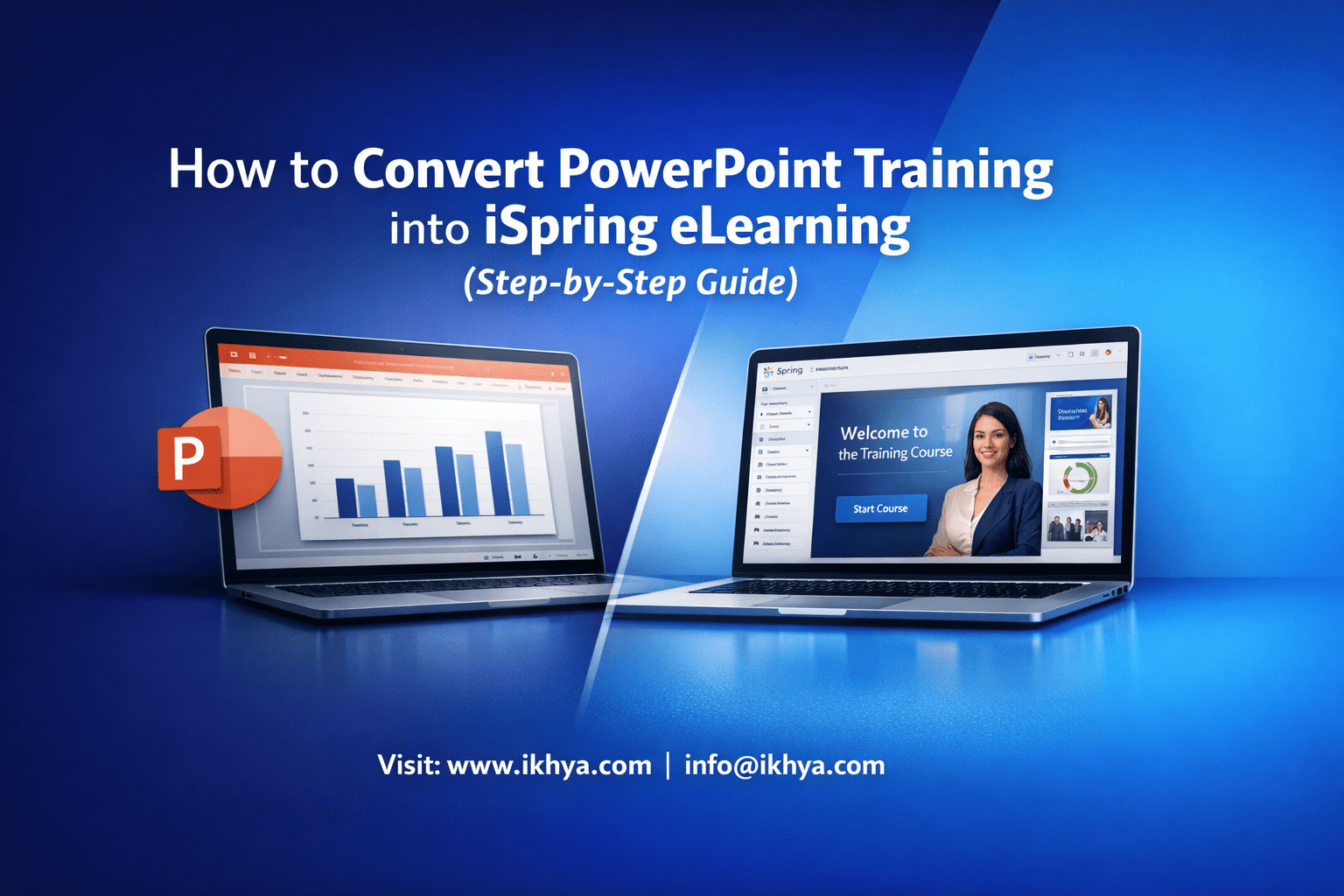
PowerPoint training is widely used in corporate learning, but it often lacks engagement, tracking, and scalability. Converting PowerPoint into iSpring eLearning transforms static slides into interactive, LMS-ready courses with quizzes, simulations, and analytics. This guide explains exactly how to convert PowerPoint training into iSpring eLearning effectively.
If you’re looking to accelerate this process, explore iSpring eLearning development services to streamline conversion and ensure professional-quality output.
What Is iSpring and Why Use It for PowerPoint Conversion?
iSpring is a PowerPoint-based eLearning authoring tool that allows you to convert slides into interactive courses without rebuilding content from scratch. It integrates directly into PowerPoint and enables publishing to SCORM, xAPI, and LMS platforms, making it ideal for rapid eLearning development.
What is iSpring Suite?
iSpring Suite is an authoring toolkit that works as a PowerPoint add-in. It enhances presentations by adding:
- Interactive quizzes and assessments
- Role-play simulations
- Voiceovers and video narration
- Screen recordings
- LMS-ready publishing formats (SCORM, xAPI, AICC)
Unlike complex tools, iSpring allows instructional designers and trainers to work within a familiar PowerPoint environment.
Why Organizations Prefer iSpring for PPT Conversion
Organizations across the USA, UK, UAE, and Australia prefer iSpring because it simplifies conversion while maintaining quality.
Key advantages include:
- No steep learning curve – Works inside PowerPoint
- Rapid development – Ideal for tight deadlines
- Cost-effective – Lower development cost than advanced tools
- LMS compatibility – Supports SCORM and xAPI
- Consistent design – Retains original slide structure
If you want a broader understanding of conversion strategies, refer to this convert PowerPoint to eLearning guide for deeper insights.
When Should You Use iSpring?
iSpring is best suited for:
- Compliance training programs
- Product training modules
- Sales enablement courses
- Employee onboarding
However, it may not be ideal for highly complex simulations or custom interactions, where tools like Storyline or Captivate are better suited.
Why Convert PowerPoint Training into eLearning?
PowerPoint training is easy to create but often fails to deliver measurable learning outcomes. Converting it into eLearning makes your content interactive, trackable, and scalable across global teams. It transforms passive slides into engaging learning experiences that improve retention and performance.
Limitations of Traditional PowerPoint Training
Most organizations rely heavily on PowerPoint for training, but it comes with serious drawbacks.
Key limitations include:
- No interactivity – Learners passively consume content
- No tracking or analytics – You cannot measure completion or performance
- Inconsistent delivery – Depends on instructor quality
- Low engagement – Static slides reduce attention span
- No LMS integration – Cannot be deployed at scale
For example, a compliance training PPT used in a classroom in the UAE may not deliver the same impact when shared across distributed teams in the USA or UK.
Benefits of Converting PPT into iSpring eLearning
When you convert PowerPoint into iSpring eLearning, you unlock a range of capabilities that modern corporate training requires.
Major benefits:
- Interactive learning experience
- Add quizzes, branching scenarios, and simulations
- Improve learner engagement and retention
- LMS-ready courses
- Publish in SCORM/xAPI formats
- Track learner progress and completion
- Consistency across regions
- Standardized delivery across global teams
- Ideal for compliance and onboarding
- Faster updates and scalability
- Modify content once and deploy instantly
- Reach thousands of learners simultaneously
- Multimedia enhancement
- Add voiceovers, videos, and animations
- Convert static slides into dynamic modules
Real-World Scenario
A manufacturing company in Australia converted safety training PPTs into iSpring modules:
- Added scenario-based quizzes
- Integrated voiceover instructions
- Enabled LMS tracking
Result:
- 40% increase in course completion rates
- 30% improvement in assessment scores
When Conversion Becomes Essential
You should convert PowerPoint training into eLearning when:
- You need global training deployment
- Compliance tracking is required
- Training needs to be self-paced
- Instructor-led training is not scalable
- You want measurable learning outcomes
If you’re planning a structured transition, professional PPT to eLearning conversion services can help ensure instructional quality and faster turnaround.
Step-by-Step Process to Convert PowerPoint into iSpring eLearning
Converting PowerPoint into iSpring eLearning involves more than just importing slides. It requires a structured process that combines content refinement, instructional design, and interactivity to create effective, LMS-ready training modules.
Step 1: Audit Existing PowerPoint Content
Start by evaluating your current PPT to identify what should be retained, updated, or removed.
What to review:
- Outdated or redundant slides
- Content accuracy and relevance
- Visual consistency and branding
- Slide overload (too much text)
Best practice:
Break long presentations into smaller modules to support microlearning and improve retention.
Step 2: Define Clear Learning Objectives
Before importing into iSpring, align your content with business goals.
Define:
- What learners should know or do after training
- Key performance outcomes
- Assessment criteria
Example:
Instead of “Understand safety procedures,” define:
“Identify and apply 5 critical safety protocols in manufacturing environments.”
Step 3: Import PowerPoint into iSpring
iSpring integrates directly with PowerPoint, making this step seamless.
Process:
- Install iSpring Suite
- Open your PowerPoint file
- Access the iSpring tab
- Import slides into the iSpring environment
At this stage, your slides remain intact but are ready for enhancement.
Step 4: Add Interactivity (Quizzes, Scenarios, Simulations)
This is where real transformation happens.
Enhancements to include:
- Quizzes: Multiple choice, drag-and-drop, hotspot questions
- Branching scenarios: Real-life decision-making paths
- Knowledge checks: Reinforce learning after each section
Tip:
Use scenario-based learning for industries like healthcare, compliance, and aviation where decision-making is critical.
Step 5: Add Voiceover and Multimedia
Enhance engagement with audio and visual elements.
Options:
- Narration for each slide
- Embedded videos (product demos, simulations)
- Screen recordings for software training
Best practice:
Keep audio concise and aligned with on-screen content to avoid cognitive overload.
Step 6: Publish to SCORM/xAPI for LMS Integration
Once your course is ready, publish it for deployment.
Publishing options:
- SCORM 1.2 / SCORM 2004
- xAPI (Tin Can)
- HTML5 for web delivery
Benefits:
- Track learner progress
- Measure completion rates
- Generate analytics for improvement
Process Summary
| Step | Action | Outcome |
|---|---|---|
| 1 | Audit PPT | Clean, relevant content |
| 2 | Define objectives | Clear learning goals |
| 3 | Import into iSpring | Ready for enhancement |
| 4 | Add interactivity | Engaging experience |
| 5 | Add multimedia | Improved retention |
| 6 | Publish to LMS | Trackable training |
Timeline for Conversion
| Project Size | Estimated Time |
|---|---|
| Small (10–15 slides) | 2–3 days |
| Medium (30–50 slides) | 1–2 weeks |
| Large (100+ slides) | 3–5 weeks |
Pro Tip: Speed Up Conversion
If you’re working with tight deadlines, consider leveraging rapid eLearning development services to accelerate production without compromising quality.
Instructional Design Best Practices for iSpring Conversion
Converting PowerPoint into iSpring eLearning is not just a technical process—it requires strong instructional design to ensure learners engage, retain, and apply knowledge. By applying proven design principles, you can transform basic slides into impactful learning experiences.
For organizations aiming to maximize learning outcomes, leveraging professional instructional design services can significantly improve course effectiveness.
Chunking Content for Better Learning
Chunking involves breaking down large amounts of information into smaller, digestible units. This is essential when converting lengthy PowerPoint decks into eLearning.
Best practices for chunking:
- Divide content into 5–7 minute modules
- Focus each module on one key concept
- Use clear headings and transitions
- Avoid overcrowded slides
Why it works:
- Reduces cognitive overload
- Improves retention and completion rates
- Supports mobile and microlearning formats
Use Scenario-Based Learning
Scenario-based learning transforms passive content into decision-driven experiences.
How to implement in iSpring:
- Create real-life situations relevant to the learner
- Add branching choices with consequences
- Provide feedback for each decision
Example:
In a healthcare training module:
- Present a patient case
- Ask learners to choose a treatment approach
- Show outcomes based on decisions
Where it works best:
- Compliance training
- Healthcare and safety training
- Customer service and sales
Design for Engagement, Not Just Information
Most PowerPoint presentations are information-heavy. eLearning should be engagement-focused.
Engagement strategies:
- Interactive quizzes after each section
- Clickable elements (tabs, hotspots)
- Storytelling approach instead of bullet-heavy slides
- Gamification elements like scoring and badges
Apply Multimedia Learning Principles
iSpring allows you to integrate multimedia—but it must be used strategically.
Follow these principles:
- Combine audio + visuals, not text-heavy slides
- Keep narration clear and concise
- Avoid redundant on-screen text with voiceover
- Use visuals to support—not distract from—learning
Align Assessments with Objectives
Your assessments should directly measure learning outcomes defined earlier.
Best practices:
- Use quizzes aligned with objectives
- Include scenario-based assessments
- Provide instant feedback
- Track performance through LMS analytics
Ensure Mobile-Friendly Learning
Modern learners access training on multiple devices.
Design considerations:
- Use responsive layouts
- Keep interactions simple and touch-friendly
- Optimize media for faster loading
This is especially critical for industries like retail, manufacturing, and field services where employees rely on mobile learning.
Instructional Design Checklist
| Area | Best Practice | Impact |
|---|---|---|
| Content structure | Chunk into modules | Better retention |
| Interactivity | Use scenarios & quizzes | Higher engagement |
| Multimedia | Balanced use of audio/video | Improved understanding |
| Assessments | Align with objectives | Measurable outcomes |
| Mobile design | Responsive content | Wider accessibility |
Real-World Insight
A financial services firm in the UK redesigned legacy PPT training using instructional design principles:
- Converted slides into microlearning modules
- Added branching compliance scenarios
- Integrated LMS analytics
Result:
- 50% faster course completion
- Significant improvement in compliance scores
Key Features of iSpring That Enhance PowerPoint Conversion
iSpring enhances PowerPoint by adding interactivity, assessments, and LMS compatibility without requiring advanced technical skills. It turns static slides into fully functional eLearning courses that are engaging, trackable, and scalable for enterprise training.
To understand how iSpring fits into the broader ecosystem, explore this eLearning authoring tool guide for a complete overview.
Core Features of iSpring for eLearning Development
iSpring’s strength lies in its ability to extend PowerPoint rather than replace it.
Key capabilities include:
- QuizMaker
- Create graded quizzes, surveys, and knowledge checks
- Supports 14+ question types including drag-and-drop
- Role-Play Simulations
- Build conversation-based scenarios
- Ideal for sales, customer service, and compliance
- Screen Recording
- Record software demos and walkthroughs
- Useful for IT and product training
- Voiceover & Video Narration
- Sync audio with slides
- Add presenter videos for engagement
- Interaction Builder
- Add tabs, timelines, FAQs, and labeled graphics
- Replace static bullet points with interactive elements
Feature Breakdown Table
| Feature | Function | Use Case |
|---|---|---|
| QuizMaker | Assess knowledge | Compliance, certification |
| Role-play | Simulate decisions | Sales, customer service |
| Screen recording | Demonstrate processes | Software training |
| Interactions | Add engagement | Product training |
| Voiceover | Narrate content | Onboarding |
LMS Compatibility and Publishing
One of iSpring’s biggest advantages is seamless LMS integration.
Supported formats:
- SCORM 1.2 / SCORM 2004
- xAPI (Tin Can API)
- AICC
- HTML5 output
What this enables:
- Track learner progress
- Measure completion rates
- Generate detailed analytics
- Ensure compliance reporting
Ease of Use vs Advanced Tools
iSpring is designed for speed and simplicity, making it ideal for rapid eLearning development.
| Criteria | iSpring | Advanced Tools (Storyline/Captivate) |
|---|---|---|
| Learning curve | Low | High |
| Development speed | Fast | Moderate |
| Customization | Medium | High |
| Best for | PPT-based training | Complex simulations |
Why iSpring Is Ideal for Rapid eLearning
Organizations choose iSpring when they need to convert large volumes of PowerPoint content quickly.
Key advantages:
- Minimal redesign required
- Faster turnaround times
- Lower development cost
- Consistent course structure
If you’re handling large-scale conversions, rapid eLearning development services can help accelerate delivery while maintaining quality.
Real-World Example
A retail organization in the USA used iSpring to convert onboarding PPTs:
- Added quizzes and interactive scenarios
- Integrated LMS tracking
- Enabled mobile-friendly access
Outcome:
- Reduced onboarding time by 35%
- Improved knowledge retention across store staff
iSpring vs Other Authoring Tools (Storyline, Captivate, Rise)
Choosing the right authoring tool depends on your training complexity, timeline, and interactivity needs. While iSpring is ideal for rapid PowerPoint conversion, tools like Storyline, Captivate, and Rise offer different strengths for advanced or responsive learning.
Quick Comparison of iSpring vs Other Tools
| Criteria | iSpring | Articulate Storyline | Adobe Captivate | Articulate Rise |
|---|---|---|---|---|
| Ease of use | Very easy (PowerPoint-based) | Moderate | Moderate–high | Very easy |
| Development speed | Fast | Medium | Medium | Very fast |
| Interactivity | Moderate | Advanced | Advanced | Limited |
| Customization | Medium | High | High | Low |
| Responsive design | Limited | Partial | Strong | Fully responsive |
| Best use case | PPT conversion | Custom simulations | Software training | Microlearning |
When Should You Use iSpring?
iSpring is the best choice when:
- You already have PowerPoint-based training content
- You need rapid conversion with minimal redesign
- Your courses require basic to moderate interactivity
- You want a cost-effective solution
Ideal for:
- Compliance training
- Employee onboarding
- Product knowledge training
When to Choose Storyline, Captivate, or Rise
Each tool serves a different purpose depending on your learning requirements.
Choose Storyline when:
- You need complex branching scenarios
- Custom animations and interactions are required
- High-end instructional design is a priority
Explore advanced capabilities through Articulate Storyline development services.
Choose Adobe Captivate when:
- You are creating software simulations
- Need responsive and adaptive learning
- Require VR or advanced interactions
Choose Articulate Rise when:
- You need fully responsive, mobile-first courses
- Content is text-based or microlearning-focused
- Speed is critical over customization
Decision Framework
| Scenario | Recommended Tool |
|---|---|
| Convert existing PPT quickly | iSpring |
| Build highly interactive training | Storyline |
| Create software simulations | Captivate |
| Develop mobile-first microlearning | Rise |
Hybrid Approach (Best Practice)
Many organizations combine tools for maximum impact.
Example approach:
- Use iSpring for bulk PPT conversion
- Use Storyline for advanced modules
- Use Rise for microlearning and mobile delivery
This blended strategy is common in global enterprises across the UK, USA, and UAE.
Key Takeaway
- iSpring = speed and simplicity
- Storyline/Captivate = flexibility and depth
- Rise = responsiveness and scalability
Your choice should align with training goals, budget, and timeline.
Before making a final decision, consider exploring outsource eLearning development benefits, costs, and best practices to evaluate whether external expertise can improve efficiency and ROI.
Cost of Converting PowerPoint to iSpring eLearning
The cost of converting PowerPoint into iSpring eLearning depends on factors like content complexity, interactivity level, multimedia elements, and project scale. While iSpring reduces development costs compared to advanced tools, pricing can still vary significantly based on your requirements.
Typical Cost Breakdown
Below is a general cost range based on industry standards across the USA, UK, UAE, and Australia.
| Project Type | Cost per Slide | Cost per Hour of eLearning |
|---|---|---|
| Basic (slide conversion only) | $10 – $25 | $1,000 – $3,000 |
| Moderate (quizzes + voiceover) | $25 – $50 | $3,000 – $6,000 |
| Advanced (scenarios + interactivity) | $50 – $100+ | $6,000 – $12,000+ |
Key Factors That Influence Cost
1. Content Complexity
- Simple text-based slides cost less
- Technical or compliance-heavy content requires more effort
2. Level of Interactivity
- Basic navigation vs branching scenarios
- Gamification and simulations increase cost
3. Multimedia Integration
- Voiceovers, videos, animations
- Screen recordings for software training
4. Instructional Design Effort
- Content restructuring
- Storyboarding and learner engagement strategy
5. Localization and Accessibility
- Multi-language translation
- WCAG compliance for accessibility
Cost Comparison: iSpring vs Other Tools
| Tool | Cost Level | Why |
|---|---|---|
| iSpring | Low–Medium | Faster development, less customization |
| Storyline | Medium–High | Advanced interactivity requires more time |
| Captivate | High | Complex simulations and responsive design |
In-House vs Outsourcing Cost Perspective
| Approach | Cost | Considerations |
|---|---|---|
| In-house | Lower upfront | Requires skilled team and tools |
| Outsourcing | Higher upfront | Faster delivery, better quality |
Outsourcing is often more cost-effective in the long run, especially for large-scale or time-sensitive projects.
If you’re evaluating options, professional PPT to eLearning conversion services can provide accurate estimates based on your content and goals.
Hidden Costs to Consider
Many organizations overlook indirect costs during conversion.
Common hidden costs:
- SME (Subject Matter Expert) time
- Review cycles and revisions
- LMS integration and testing
- Content updates and maintenance
Real-World Budget Example
A compliance training program in the financial sector:
- 50-slide PPT converted to iSpring
- Included quizzes and voiceover
- Delivered in SCORM format
Estimated cost: $4,000 – $7,000
Timeline: 2–3 weeks
How to Optimize Your Budget
Practical tips:
- Reuse existing assets (images, videos)
- Limit unnecessary animations
- Use templates for consistency
- Prioritize high-impact modules first
Before committing to development, you can book a free elearning demo to evaluate tools, approach, and expected outcomes.
In-House vs Outsourcing PPT to iSpring Conversion
Deciding between in-house development and outsourcing depends on your team’s expertise, timeline, and project scale. While in-house teams offer control, outsourcing provides speed, specialized skills, and scalability—especially for large or complex conversions.
In-House vs Outsourcing: Quick Comparison
| Factor | In-House Development | Outsourcing to Experts |
|---|---|---|
| Cost | Lower upfront | Higher upfront, better ROI |
| Speed | Slower (limited bandwidth) | Faster (dedicated teams) |
| Expertise | Depends on team skills | Access to specialists |
| Quality | Varies | Consistent, professional |
| Scalability | Limited | Easily scalable |
| Tools & tech | Requires investment | Already available |
When In-House Development Makes Sense
In-house is suitable when:
- You have a skilled instructional design team
- Projects are small or occasional
- You need full control over content
- Budget constraints are strict
Challenges to consider:
- Longer development timelines
- Limited exposure to best practices
- Difficulty scaling for large projects
When to Outsource PPT to iSpring Conversion
Outsourcing is ideal when:
- You need fast turnaround
- Projects involve large volumes of PPT content
- High-quality instructional design is required
- You want LMS-ready, scalable solutions
Key advantages:
- Access to experienced designers and developers
- Proven workflows and templates
- Faster delivery with fewer revisions
- Better alignment with global standards (SCORM, xAPI, accessibility)
Real-World Scenario
A healthcare organization in the UK needed to convert 200+ slides into compliance training:
- In-house estimate: 10–12 weeks
- Outsourced timeline: 4–6 weeks
Outcome:
- Faster deployment
- Higher engagement due to better instructional design
- Reduced internal workload
Hybrid Approach: Best of Both Worlds
Many enterprises adopt a hybrid model:
- In-house team: Content review, SME input
- Outsourced team: Development, interactivity, LMS integration
This approach ensures:
- Faster delivery
- Better quality
- Internal control over content accuracy
How to Choose the Right Approach
Ask these key questions:
- Do you have internal expertise in iSpring and instructional design?
- Is your timeline tight or flexible?
- How complex is your training content?
- Do you need scalability for future projects?
If the answer leans toward speed, scale, and quality, outsourcing is typically the better option.
For organizations evaluating external support, exploring outsource eLearning development benefits, costs, and best practices can help you make an informed decision.
When to Take the Next Step
If you’re planning a conversion project and want expert guidance, you can book a free elearning demo to assess the right approach for your training needs.
Industries That Benefit Most from iSpring-Based eLearning
iSpring-based eLearning is widely used across industries that rely on structured training, compliance, and scalable learning. Its ability to quickly convert PowerPoint into interactive, LMS-ready courses makes it especially valuable for organizations with large, distributed workforces.
Healthcare Industry
Healthcare organizations require accurate, compliant, and frequently updated training.
Use cases:
- Clinical procedure training
- Patient safety protocols
- Compliance (HIPAA, regulatory standards)
- Medical device training
Why iSpring works:
- Converts existing PPTs quickly into standardized modules
- Supports scenario-based learning for critical decision-making
- Enables tracking for compliance audits
Manufacturing Industry
Manufacturing environments depend on consistent safety and operational training.
Use cases:
- Safety training (equipment handling, hazard awareness)
- Process training for machinery
- Onboarding for factory workers
Benefits:
- Standardized training across multiple plants (USA, UAE, AUS)
- Easy updates for changing safety regulations
- Mobile-friendly access for on-site workers
Financial Services & Compliance Training
Financial institutions must deliver highly regulated training with audit trails.
Use cases:
- Anti-money laundering (AML) training
- Risk management
- Regulatory compliance programs
Why iSpring is effective:
- LMS tracking ensures audit readiness
- Quizzes and assessments validate knowledge
- Rapid updates for evolving regulations
Retail Industry
Retail organizations need fast, scalable training for large frontline teams.
Use cases:
- Product training
- Customer service training
- Sales enablement
Key advantages:
- Quick rollout across multiple store locations
- Microlearning modules for busy staff
- Consistent brand messaging
IT & Software Training
Technology companies require ongoing training for tools, systems, and processes.
Use cases:
- Software onboarding
- System updates and feature training
- Internal process training
iSpring strengths:
- Screen recording for system walkthroughs
- Step-by-step simulations
- Easy updates for frequent software changes
Industry Comparison Table
| Industry | Primary Use Case | Key Benefit |
|---|---|---|
| Healthcare | Compliance & clinical training | Accuracy + audit tracking |
| Manufacturing | Safety & operations | Standardization |
| Finance | Regulatory compliance | LMS reporting |
| Retail | Sales & onboarding | Scalability |
| IT/Software | System training | Visual demonstrations |
Why Industry-Specific Customization Matters
While iSpring enables rapid conversion, effective training requires customization based on industry needs.
Key considerations:
- Compliance requirements (SCORM, xAPI tracking)
- Learner environment (desk vs field workers)
- Content complexity (technical vs behavioral)
For tailored solutions across industries, custom eLearning development services can help align training with business goals.
Real-World Insight
A retail brand operating across the USA and UK converted product training PPTs into iSpring modules:
- Introduced microlearning format
- Added interactive quizzes
- Enabled mobile access
Result:
- Faster onboarding for new employees
- Improved sales performance at store level
Common Challenges in Converting PowerPoint to iSpring eLearning (and How to Overcome Them)
Converting PowerPoint into iSpring eLearning may seem straightforward, but organizations often face challenges related to content quality, engagement, and scalability. Addressing these early ensures your courses are not just converted—but truly effective and learner-focused.
Challenge 1: Converting Slides Without Improving Learning Quality
Many teams simply import slides into iSpring without redesigning them.
Problem:
- Results in “click-next” courses
- Low engagement and retention
Solution:
- Apply instructional design principles
- Convert text-heavy slides into interactive elements
- Add quizzes and scenario-based learning
Challenge 2: Overloaded and Text-Heavy Slides
PowerPoint presentations often contain too much information per slide.
Problem:
- Cognitive overload
- Reduced learner attention
Solution:
- Break content into smaller modules (microlearning)
- Use visuals instead of long text
- Add progressive disclosure (tabs, layers, interactions)
Challenge 3: Lack of Interactivity
Static slides fail to engage learners in a digital environment.
Problem:
- Passive learning experience
- Low completion rates
Solution:
- Add quizzes after each section
- Use branching scenarios for decision-making
- Include clickable interactions
Challenge 4: Poor Audio and Multimedia Integration
Adding voiceovers without planning can reduce effectiveness.
Problem:
- Mismatch between audio and visuals
- Overloaded slides with narration + text
Solution:
- Script voiceovers before recording
- Keep narration concise
- Align visuals with spoken content
Challenge 5: LMS Compatibility Issues
Improper publishing settings can cause tracking or reporting issues.
Problem:
- Courses not tracking completion
- Data not syncing with LMS
Solution:
- Use correct SCORM/xAPI settings
- Test courses in LMS before deployment
- Validate reporting and analytics
Challenge 6: Underestimating Time and Effort
Organizations often assume conversion is quick and simple.
Problem:
- Missed deadlines
- Compromised quality
Solution:
- Plan realistic timelines
- Allocate time for reviews and revisions
- Use structured workflows
Challenge Summary Table
| Challenge | Impact | Solution |
|---|---|---|
| No instructional design | Low engagement | Redesign content |
| Text-heavy slides | Cognitive overload | Chunk and simplify |
| Lack of interactivity | Poor retention | Add quizzes/scenarios |
| Poor multimedia use | Confusion | Align audio + visuals |
| LMS issues | Tracking failure | Test SCORM/xAPI |
| Time underestimation | Delays | Plan properly |
Pro Tip: Avoid “Lift-and-Shift” Conversion
One of the biggest mistakes is treating conversion as a technical task rather than a learning transformation.
Instead:
- Focus on learner experience
- Redesign content where needed
- Use iSpring features strategically
When to Seek Expert Help
If your project involves:
- Large-scale conversions
- Compliance training
- Multi-language deployment
- Tight timelines
Then outsourcing to specialists can reduce risk and improve quality. You can explore PPT to eLearning conversion services for end-to-end support.
When Should You Use iSpring vs Other Tools?
Choosing between iSpring and other eLearning authoring tools depends on your project goals, content complexity, and delivery requirements. iSpring is ideal for rapid PowerPoint conversion, while other tools are better suited for advanced interactivity or fully responsive design.
Use iSpring When Speed and Simplicity Matter
iSpring is the best choice when you need to quickly convert existing PowerPoint training into interactive eLearning without rebuilding everything from scratch.
Use iSpring if:
- You already have well-structured PowerPoint content
- You need fast turnaround (rapid eLearning)
- Your training requires basic to moderate interactivity
- You want a cost-effective solution
- Your team prefers working within PowerPoint
Best-fit scenarios:
- Compliance training programs
- Employee onboarding
- Product and sales training
Use Other Tools When You Need Advanced Capabilities
iSpring has limitations when it comes to complex, highly customized learning experiences.
Choose other tools when:
- You need complex branching scenarios or simulations
- Custom animations and interactions are required
- You want fully responsive, mobile-first design
- Training involves software simulations or advanced workflows
Decision Comparison Table
| Requirement | Recommended Tool |
|---|---|
| Fast PPT conversion | iSpring |
| High interactivity | Storyline |
| Software simulations | Captivate |
| Mobile-first learning | Rise |
Decision Framework: Ask These Questions
Use this simple framework to decide:
- Do you already have PowerPoint content?
- Yes → iSpring
- No → Consider Storyline or Rise
- How complex is the interaction?
- Basic → iSpring
- Advanced → Storyline/Captivate
- Is mobile responsiveness critical?
- Yes → Rise or Captivate
- No → iSpring works well
- What is your timeline?
- Tight → iSpring
- Flexible → Any tool
Hybrid Strategy for Enterprise Training
Many organizations don’t rely on just one tool.
Recommended hybrid approach:
- Use iSpring for bulk PowerPoint conversion
- Use Storyline for advanced modules
- Use Rise for microlearning and mobile delivery
This approach is widely adopted in global organizations across the USA, UK, and UAE.
Key Takeaway
- iSpring is ideal for speed, simplicity, and cost efficiency
- Other tools are better for customization and advanced learning experiences
The right choice depends on aligning your learning objectives, budget, and timeline.
How to Choose the Right eLearning Vendor for PowerPoint to iSpring Conversion
Choosing the right eLearning vendor is critical to ensuring your PowerPoint conversion delivers real business impact—not just converted slides. The right partner brings instructional design expertise, technical capability, and scalability to handle enterprise training needs.
What to Look for in an eLearning Vendor
A reliable vendor should offer more than just development—they should act as a strategic partner.
Key evaluation criteria:
- Instructional design expertise
- Ability to transform content, not just convert it
- Experience in scenario-based and interactive learning
- iSpring specialization
- Proven experience with iSpring Suite
- Understanding of rapid eLearning workflows
- LMS and compliance knowledge
- SCORM, xAPI, AICC expertise
- Experience with LMS integration and analytics
- Industry experience
- Familiarity with your domain (healthcare, finance, manufacturing, etc.)
- Scalability and turnaround time
- Ability to handle large projects
- Clear timelines and delivery processes
Vendor Evaluation Checklist
| Criteria | What to Check | Why It Matters |
|---|---|---|
| Portfolio | Past iSpring projects | Proof of capability |
| Process | Defined workflow | Predictable delivery |
| Team | IDs + developers | Quality output |
| Tools | Latest authoring tools | Efficiency |
| Support | Post-launch support | Long-term success |
Questions to Ask Before Hiring
Before selecting a vendor, ask these critical questions:
- Can you share samples of iSpring-based courses?
- What is your conversion process and timeline?
- How do you ensure instructional design quality?
- Do you support multi-language and localization?
- How do you handle LMS integration and testing?
Red Flags to Avoid
Be cautious of vendors who:
- Offer only slide-to-slide conversion without redesign
- Lack experience with SCORM/xAPI standards
- Cannot provide real project samples
- Promise unrealistic timelines or low costs
In-House vs Vendor Decision Snapshot
| Scenario | Recommended Approach |
|---|---|
| Small project, internal expertise | In-house |
| Large-scale conversion | Outsourcing |
| Tight deadlines | Outsourcing |
| High interactivity required | Vendor with ID expertise |
Why Organizations Choose Specialized eLearning Companies
Enterprises across the USA, UK, and UAE prefer specialized vendors because they provide:
- Faster turnaround with structured workflows
- Higher engagement through instructional design
- Scalable solutions for global deployment
- Better ROI through reduced rework
If you’re evaluating vendors, this guide on how to choose the eLearning vendor can help you make a more informed decision.
When to Take Action
If your organization is planning to convert PowerPoint training into iSpring eLearning at scale, working with an experienced partner can significantly reduce risk and improve outcomes.
You can also request an RFP to get a tailored proposal based on your specific training requirements.
Conclusion
Converting PowerPoint training into iSpring eLearning is not just about digitization—it’s about transforming static content into engaging, measurable, and scalable learning experiences.
By following a structured approach—auditing content, applying instructional design, leveraging iSpring features, and choosing the right development strategy—you can significantly improve training effectiveness.
Whether you’re working on compliance training, onboarding programs, or product education, iSpring offers a fast and efficient way to modernize learning.
For organizations looking to accelerate this transformation, IKHYA – eLearning Solutions Company provides end-to-end support—from strategy and instructional design to development and LMS integration.
Email: info@ikhya.com
FAQs
1. Can iSpring convert PowerPoint directly into eLearning?
Yes, iSpring integrates with PowerPoint and converts slides into interactive eLearning courses with quizzes, voiceovers, and LMS-ready formats like SCORM and xAPI.
2. How long does it take to convert PPT to iSpring eLearning?
It depends on complexity. Small projects may take 2–3 days, while larger, interactive courses can take several weeks.
3. Is iSpring better than Storyline for PPT conversion?
Yes, iSpring is better for rapid PowerPoint conversion. However, Storyline is more suitable for advanced interactivity and custom learning experiences.
4. What is the cost of converting PowerPoint to eLearning using iSpring?
Costs typically range from $1,000 to $12,000 per hour of eLearning, depending on complexity, interactivity, and multimedia requirements.
5. Can iSpring courses be used in an LMS?
Yes, iSpring supports SCORM, xAPI, and AICC formats, making it fully compatible with most LMS platforms.
6. Do I need instructional design for PPT conversion?
Yes, instructional design is essential to transform static slides into engaging and effective learning experiences.
7. Is iSpring suitable for mobile learning?
Yes, iSpring publishes HTML5 courses that work on mobile devices, though it is less responsive compared to tools like Rise.
8. Can I add quizzes and assessments in iSpring?
Yes, iSpring includes QuizMaker, which allows you to create interactive quizzes, surveys, and assessments.
9. Should I outsource PowerPoint to eLearning conversion?
Outsourcing is recommended for large-scale or complex projects to ensure quality, speed, and scalability.
10. What industries benefit most from iSpring eLearning?
Healthcare, manufacturing, finance, retail, and IT industries benefit due to compliance, scalability, and training consistency needs.
11. What file formats does iSpring support for publishing?
iSpring supports SCORM 1.2, SCORM 2004, xAPI (Tin Can), AICC, and HTML5 formats for web and LMS deployment.
12. Can I update my iSpring courses after publishing?
Yes, since iSpring works within PowerPoint, you can easily update slides and republish the course without starting from scratch.
13. Does iSpring support multilingual eLearning?
Yes, iSpring supports multi-language content, including translations and localization for global training programs.
14. Can I track learner performance in iSpring courses?
Yes, when published to an LMS, iSpring courses can track completion rates, quiz scores, time spent, and learner progress.
15. What types of interactivity can I add using iSpring?
You can add quizzes, branching scenarios, role-plays, clickable interactions, and multimedia elements like videos and voiceovers.
16. Is coding required to use iSpring?
No, iSpring is a no-code authoring tool that works within PowerPoint, making it easy for non-technical users.
17. How does iSpring support compliance training?
iSpring enables LMS tracking, assessments, and reporting, which are essential for compliance training in regulated industries.
18. Can iSpring be used for microlearning?
Yes, you can break content into short modules and create microlearning courses using iSpring.
19. What is the difference between rapid eLearning and traditional eLearning?
Rapid eLearning focuses on speed and efficiency using tools like iSpring, while traditional eLearning involves custom development with longer timelines.
20. How do I get started with converting PowerPoint to iSpring eLearning?
Start by auditing your PPT content, defining learning objectives, and using iSpring to add interactivity and publish to an LMS. For faster results, you can also work with expert providers like IKHYA – eLearning Solutions Company.
Related Resources
Explore these additional resources to expand your strategy, compare tools, and plan a scalable eLearning conversion approach tailored to your organization.