eLearning Storyboard Template, Examples and How to Write One
Copy-ready eLearning storyboard template with every field explained, a filled-in sample, Word vs PowerPoint advice and a 7-step writing process.
The eLearning storyboard template in short
An eLearning storyboard template is a screen-by-screen planning document. For each screen it records a reference number, the learning objective, on-screen text, voiceover script, visuals, interaction and feedback, developer notes and accessibility notes. Your reviewers approve it before anything is built, so changes are made in a document instead of becoming rework in an authoring tool.
What is an eLearning storyboard?
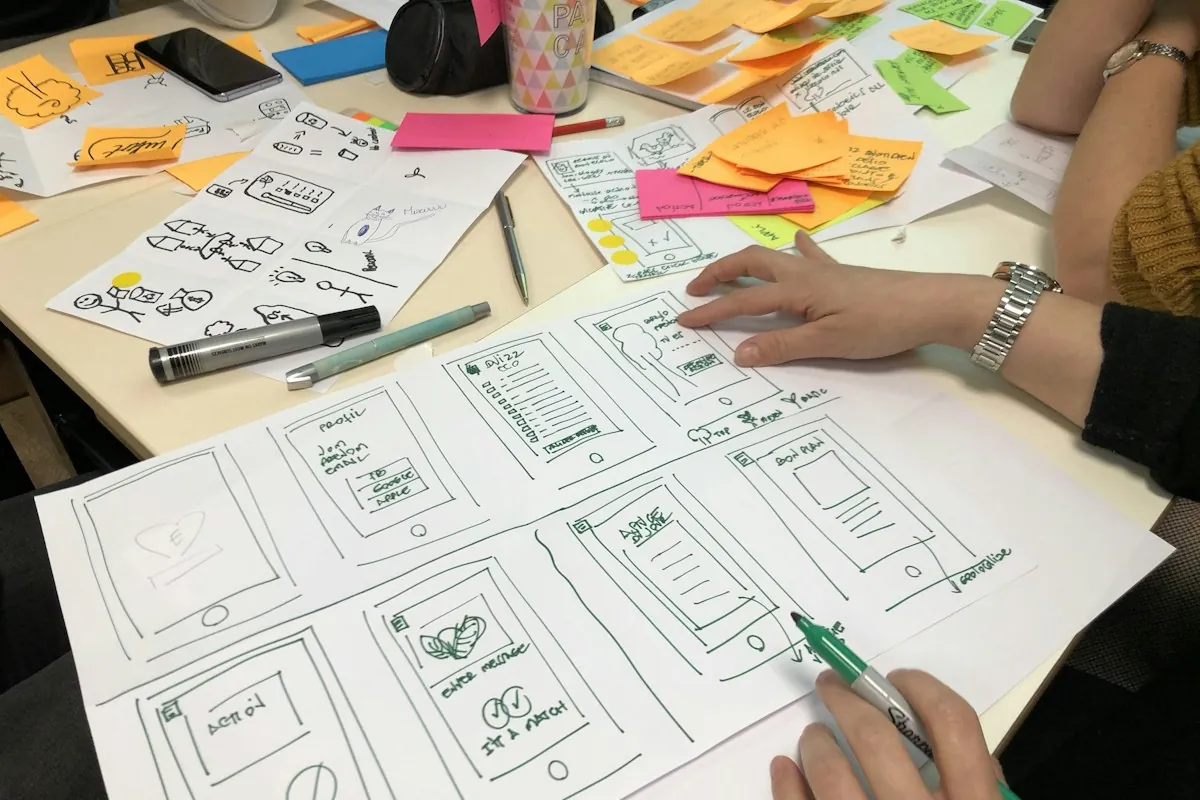
An eLearning storyboard is the blueprint of an online course: one entry per screen that says exactly what the learner sees, hears and does, and what the developer must build. It turns approved content and objectives into a plan that subject matter experts (SMEs) can check line by line before development starts.
In the ADDIE model (Analysis, Design, Development, Implementation, Evaluation), the storyboard is usually the last output of Design and the brief for Development. It sits between two other documents that people often confuse with it:
| Document | What it covers | Who mainly uses it |
|---|---|---|
| Design document | Audience, objectives, module map, approach, assessment strategy, look and feel | Project sponsor, L&D lead |
| Storyboard | Every screen: text, voiceover, visuals, interactions, feedback, notes | SMEs, reviewers, developer |
| Script | Only the narration (often exported from the storyboard for the voice artist) | Voice artist, audio editor |
Why teams storyboard at all
Reviewers comment on content while it is still cheap to change: a sentence in a document, not a re-recorded audio file and a republished SCORM package.
The developer gets one source of truth, so fewer questions and fewer guesses.
Every screen is tied to an objective, which makes padding easy to spot and cut.
The voiceover script, captions, alt text and translation files can all be produced from the same approved text.
If you are planning the whole course, not just the storyboard, our guide to eLearning content development covers the full process from analysis to launch.
The eLearning storyboard template (copy-ready)
A useful storyboard template has two parts: a cover page that sets the rules for the whole module, and a table with one row (or one slide) per screen. Copy the fields below into Word, Google Docs or PowerPoint. Keep the field names the same across every module so reviewers always know where to look.
Part 1: Cover page
| Field | What to write |
|---|---|
| Course and module title | Working title and module number |
| Version and status | For example v0.3, "SME review" or v1.0, "Approved" |
| Audience | Roles, prior knowledge, languages, devices they will use |
| Module objectives | 2 to 5 measurable objectives ("By the end, you can...") |
| Authoring tool and output | For example Storyline 360, SCORM 2004 |
| Completion and scoring rules | What makes the module complete (screens viewed, quiz passed, pass mark) |
| Voice and style | Voiceover yes or no, tone, glossary terms, brand guide link |
| Accessibility target | For example WCAG 2.1 AA |
| Reviewers and deadline | Who reviews what (SME: accuracy, legal: wording, L&D: flow) and by when |
| Change log | Date, version, what changed, who approved |
Part 2: One entry per screen
| Field | What to write | Why it matters |
|---|---|---|
| Screen ID | Module.screen number, for example 2.07. Interaction states get letters: 2.07A, 2.07B | Reviewers and developers point to the same screen without confusion |
| Screen title | Short working title | Helps navigation and the menu |
| Objective | Which module objective this screen supports | A screen with no objective is a candidate to cut |
| On-screen text | The exact words learners read, including button labels and instructions | Reviewers approve final wording, not a summary |
| Voiceover script | The exact narration, written for the ear | Becomes the audio script and the captions |
| Visuals and media | Image, icon, video or animation description, with file names or stock IDs | The developer knows what to source or create |
| Interaction | What the learner does (click, drag, choose, type) and what happens next | Interactions are the most expensive part to change later |
| Feedback | Correct, incorrect and hint text for every choice | Without it, the developer has to invent the wording, and learners get a bare "Incorrect" |
| Navigation | Next and back rules, branching, locked or open | Prevents learners getting stuck or skipping a required screen |
| Tracking | Does this screen count toward completion or the score? | SCORM can report completion, pass or fail, score and time to the LMS, but only what you define |
| Accessibility | Alt text, caption and transcript notes, keyboard alternative, reading order | Cheaper to plan here than to fix after the build |
| Developer notes | Animation timing, triggers, variables, references to source files | Keeps build instructions out of the learner-facing text |
| Reviewer comments | One column for consolidated feedback | Comments stay next to the screen they refer to |
Not every course needs every field. A short, text-heavy compliance refresher may skip the visuals column detail; a branching scenario needs extra columns for each path. Start with all fields and delete the ones a project does not use.
Sample eLearning storyboard: 3 finished screens
Here is what a completed storyboard looks like. The example is illustrative: a short module on spotting phishing emails, written for this guide. It is not client work.
Screen 1.03: What a phishing email wants from you
| Field | Content |
|---|---|
| Objective | Recognize the three actions a phishing email tries to trigger |
| On-screen text | Phishing emails want you to: Click a link · Open an attachment · Share a password or payment detail |
| Voiceover | "Almost every phishing email is after one quick action from you. It wants you to click, to open, or to hand over something you should keep to yourself. Let's look at each one." |
| Visuals | Flat illustration of an inbox. Three icons (link, paperclip, key) appear one by one, timed to the voiceover |
| Interaction | None. Next button active from the start |
| Tracking | Counts toward completion (screen viewed) |
| Accessibility | Alt text: "Inbox with icons for a link, an attachment and a key." Captions from the voiceover script. Pause and replay controls available |
| Developer notes | Icons animate in on cue points 1, 2, 3 of the audio |
Screen 1.04: Find the warning signs (try it)
| Field | Content |
|---|---|
| Objective | Identify warning signs in a suspicious email |
| On-screen text | "Find 3 warning signs in this email. Select each one." |
| Voiceover | None (the learner works at their own pace) |
| Visuals | Mock email from "IT Servce Desk" (misspelled sender), urgent subject line, a link whose address does not match the company domain |
| Interaction | 3 hotspots. 1.04A: all 3 found. 1.04B: wrong area selected. 1.04C: hint after 2 wrong tries |
| Feedback | 1.04A: "Well spotted: the sender name is misspelled, the subject creates false urgency, and the link goes to an outside site." 1.04B: "That part looks normal. Check the sender, the subject and the link." 1.04C: "Hint: hover over the link and compare the address with your company's domain." |
| Navigation | Next unlocks after all 3 are found or after the hint state |
| Accessibility | Every hotspot reachable with the Tab key and Enter. Selected hotspots show a check icon, not only a color change |
Screen 1.05: Knowledge check
| Field | Content |
|---|---|
| Objective | Choose the correct first action for a suspicious request |
| On-screen text | "You get an email from 'IT Support' asking you to confirm your password today. What do you do first?" A: Reply with your password · B: Click the link to check · C: Report it with the phishing button (correct) · D: Forward it to a colleague |
| Feedback | Correct: "Yes. Reporting first lets the security team warn everyone else." Incorrect: "Not quite. Never act on the request itself. Report it first." |
| Tracking | Scored question, counts toward the module quiz |
| Accessibility | Answer options selectable by keyboard; feedback announced as text, not only by an icon or sound |
Notice what the sample does: the voiceover explains while the on-screen text only lists keywords, the interaction states have their own IDs, and every choice has written feedback.
Should you storyboard in Word, PowerPoint or a spreadsheet?
Use a text storyboard in Word or Google Docs when content accuracy is the main risk, and a visual storyboard in PowerPoint or Google Slides when layout, animation or a scenario's look needs approval. Many teams combine them: a Word storyboard for the content and a few PowerPoint mockups for the screens that are hard to imagine.
| Format | Best for | Watch out for |
|---|---|---|
| Word or Google Docs (text storyboard) | Compliance, policy and knowledge-heavy courses; fast SME review with tracked changes and comments | Reviewers cannot see the layout, so describe visuals precisely |
| PowerPoint or Google Slides (visual storyboard) | Visual courses, animations, scenarios; stakeholders who need to "see" the course | Reviewers may focus on rough images instead of the content; slides get crowded, so put the voiceover in the notes or a side panel |
| Excel or Google Sheets | Large programs with many short screens, microlearning series, translation tracking | Long voiceover text is hard to read in cells |
| Prototype in the authoring tool | One complex interaction that needs testing before the rest is written | Not a replacement for the storyboard: changes cost more once built |
If your storyboard is in PowerPoint, check how it will import
Articulate Storyline 360
Storyline 360 can import PowerPoint slides. Fonts embedded in the PowerPoint file are not imported, and fonts missing on the developer's computer are replaced with Arial. Most animations and transitions come across; ones with no Storyline equivalent are dropped, and videos import without captions.
Adobe Captivate
Adobe Captivate can import PowerPoint slides as editable slides and objects, but the result is a non-responsive project, and Captivate warns that not all elements may be imported.
Articulate Rise 360
Rise 360 courses are built from stacked text, media and interactive blocks, so a Rise storyboard works best as a document listing each lesson and the block for each piece of content, rather than slide mockups.
So a PowerPoint storyboard is a good starting point for development, not a finished course. Plan the build in the tool you will publish from.
How to write an eLearning storyboard in 7 steps
Writing a storyboard means turning approved objectives and source content into screens, one decision at a time. The order below keeps rework low because each step locks something the next step depends on.
- 01
Confirm the objectives and audience.
Start from a training needs analysis or at least a clear statement of what learners must do differently. If the course is one part of a larger curriculum, see how to develop a training program first.
- 02
Collect and cut the source content with your SME.
Slide decks, manuals and policies usually hold far more than learners need. Keep what supports an objective; move the rest to a job aid or a link.
- 03
Outline modules, lessons and screens.
Write one line per screen before writing any screen in full. Check the flow with your sponsor at this stage: it is the cheapest point to change structure.
- 04
Choose the format and set up the template.
Text or visual (see the format table), cover page filled in, field names fixed.
- 05
Write screen by screen.
On-screen text, voiceover, visuals, interaction, feedback, tracking, accessibility and developer notes. Write the hardest screens (scenarios, assessments) early: they reveal content gaps.
- 06
Review with SMEs and stakeholders.
Send one version, with a deadline and clear roles (see review and sign-off). Collect one consolidated set of comments per round.
- 07
Lock the approved version and hand off.
Save it as v1.0, record who approved it, then export the voiceover script and start development. Changes after this point go through the change log.
How should voiceover and on-screen text work together?
When narration explains, keep on-screen text short: keywords, labels and steps, not a copy of the script. A 2001 study in the Journal of Educational Psychology found that learners who watched an animation with narration did worse on retention and transfer tests when on-screen text summarizing or duplicating the narration was added.

The same study found that adding interesting but irrelevant details to the narration also lowered transfer. The study used college students and a short science explanation, so treat it as a strong design guide rather than a rule for every workplace course. In practice, write your storyboard with these checks:
- Narration on: on-screen text shows only what learners need to see (a term, a list, a number), and the full words live in the captions.
- No audio (for example, frontline staff on shared devices or noisy sites): on-screen text carries everything, so write it as readable sentences.
- Every sentence earns its place: if a detail does not support an objective, cut it, however interesting it is.
- Read the voiceover aloud before review. Text written for the eye often sounds stiff when spoken.
Which accessibility notes belong in the storyboard?
Accessibility is far cheaper to plan in the storyboard than to retrofit after the build. The storyboard is where alt text, captions, keyboard alternatives and non-color cues are written and approved. The table maps common storyboard fields to the WCAG 2.1 success criteria they help you meet.
| Storyboard field | What to write | WCAG 2.1 success criterion |
|---|---|---|
| Alt text for every meaningful image; "decorative" for the rest | A short description of what the image shows or does | 1.1.1 Non-text Content (Level A) |
| Captions for narration and video | The approved voiceover script, used as the caption text | 1.2.2 Captions (Prerecorded) (Level A) |
| Audio description note for video | What appears on screen that the narration does not say | 1.2.5 Audio Description (Prerecorded) (Level AA) |
| Keyboard alternative for every interaction | For example "each item selectable with Tab and Enter" instead of drag-only | 2.1.1 Keyboard (Level A) |
| Feedback cue | An icon or text in addition to the green or red color | 1.4.1 Use of Color (Level A) |
| Timed activity note | How learners can turn off, adjust or extend a time limit | 2.2.1 Timing Adjustable (Level A) |
IKHYA builds accessible eLearning to WCAG 2.1 AA and Section 508, and these fields are where that work starts.
How should you review and sign off a storyboard?
Give each reviewer a role, a deadline and one place to comment. Collect one consolidated set of comments per round, resolve conflicts before sending it back, and record the approval in the change log. Two clean rounds usually beat four overlapping ones.
Reviewer checklist (paste it on the cover page)
- Every screen supports a stated objective.
- Facts, figures, policy wording and terms are correct (SME).
- Legal or compliance wording is approved (where needed).
- Tone matches the brand guide and the glossary is used consistently.
- Every interaction has feedback for every choice, including a hint or retry path.
- Tracking and completion rules are defined and match the LMS setup.
- Alt text, captions and keyboard notes are filled in.
- The voiceover has been read aloud once.
Version naming that avoids "final_final_v3": Module2_Storyboard_v0.2_SME-review, then v0.3_Legal-review, then v1.0_Approved. Only v1.0 goes to development.
Common eLearning storyboard mistakes (and the fix)
Pasting the slide deck into the template.
Fix: rewrite for screens and objectives; move reference detail to a job aid.
Voiceover that repeats the on-screen text word for word.
Fix: let narration explain and on-screen text show keywords (see voiceover and on-screen text).
Interactions described in one vague line ("drag and drop activity").
Fix: write every item, every correct and incorrect state and every feedback message.
No feedback for wrong answers.
Fix: write feedback that explains why, not just "Incorrect".
Accessibility left for "later".
Fix: fill the alt text, captions and keyboard fields while writing (see accessibility notes).
Too many reviewers commenting separately.
Fix: one consolidated set of comments per round, owned by one person.
Changes after approval with no record.
Fix: use the change log and version names; every change after v1.0 is approved like the original.
Storyboards in a real design project
 Insurance
A needs analysis that turned 40 hours of SME slides into a 6-hour role-based curriculum
- Client
- A US insurance company's claims department, 600 adjusters.
- What we did
- SME interviews and job-task analysis; action-mapped learning objectives; a design document and storyboards for 9 modules; built by the client's in-house team.
- Result
- Time to competency for new adjusters down from 14 weeks to 10.
The point for your own projects: the storyboards were a handover document. Because each one was approved screen by screen, the client's own team could build the modules without the designers in the room.
Should you outsource eLearning storyboarding?
Outsource the storyboard when you have the subject knowledge but not the instructional design time, or when the course needs scenarios, simulations or several languages. Keep it in-house when your team has a designer with capacity and the content changes often.
Outsourcing usually makes sense when
Your SMEs know the content but have never written for eLearning.
You have a deadline and no designer free to write every screen of every module.
The course relies on branching scenarios, simulations or assessments that must be designed carefully.
The course will be translated, so the text must be written to translate cleanly from the start.
IKHYA is a custom eLearning development company that has delivered eLearning since 2010, with 120+ specialists, 500+ projects and clients in 40+ countries. Our instructional design services cover the design and storyboarding stage of a course, and we build it in Storyline 360, Rise 360, Adobe Captivate, Lectora, iSpring Suite, dominKnow ONE or Elucidat. When we build the course, you receive the editable source files for future revisions.
How we run storyboarding
1. Kickoff
We review your source content, audience and objectives with your SME.
2. Design document
Objectives, module map and approach, approved by you.
3. Sample storyboard
One module first, so tone, format and level of detail are agreed early.
4. Remaining storyboards
Written in the format your reviewers prefer (Word or PowerPoint).
5. Review rounds
Up to 2 review rounds per storyboard, each based on one consolidated comment list.
6. Sign-off
Then development, audio and LMS testing.
What to send us to start
- Source content (slides, manuals, policies, recordings).
- Objectives, or the results of a needs analysis.
- Audience details: roles, languages, devices.
- SME names and their available review time.
- Brand guide and any existing course you like.
- LMS and tracking standard (SCORM 1.2, SCORM 2004 or xAPI).
- Accessibility target and target languages.
Every free quote includes a timeline for the project.
Need this built for your team?
Send your source content and we will recommend an approach.
eLearning storyboard FAQ
It is a screen-by-screen plan of an online course that records what learners see, hear and do on each screen, plus notes for the developer. Reviewers approve it before development starts.
Use Word for content-heavy courses where accuracy matters most, and PowerPoint when layout, animation or scenarios need visual approval. Many teams use Word for the content and PowerPoint mockups for a few complex screens.
This guide gives a free, copy-ready template with every field explained. Authoring-tool communities and instructional design blogs also share free templates; check that any template you use includes feedback, tracking and accessibility fields.
A design document sets the course-level plan: audience, objectives, module map, approach and assessment strategy. A storyboard details every screen of a module. The design document is approved first, and the storyboard follows it.
Yes, but a lighter one. Rise 360 courses are built from stacked text, media and interactive blocks, so a document that lists each lesson and the block for each piece of content works better than slide mockups.
Yes. Our instructional designers can write the design document and storyboards for your course, and your team reviews and approves each one.
Your source content, objectives or needs analysis results, audience details, SME availability, brand guide, LMS and tracking standard, accessibility target and languages.
Plan for two rounds with one consolidated set of comments each, and agree the reviewers and deadlines before writing starts. More rounds usually mean the objectives or reviewers were not agreed early enough.
Need this built for your team?
From storyboard to SCORM package, tested in your LMS.